
Magic Session Manager
See who's logged into your Strapi app - and control their sessions!
Track logins, monitor active users, and secure your app with one simple plugin. No complicated setup required.
Free and open under the MIT license. All features are available without a paid license or activation key.


What It Looks Like
Homepage Widget - Quick Stats at a Glance
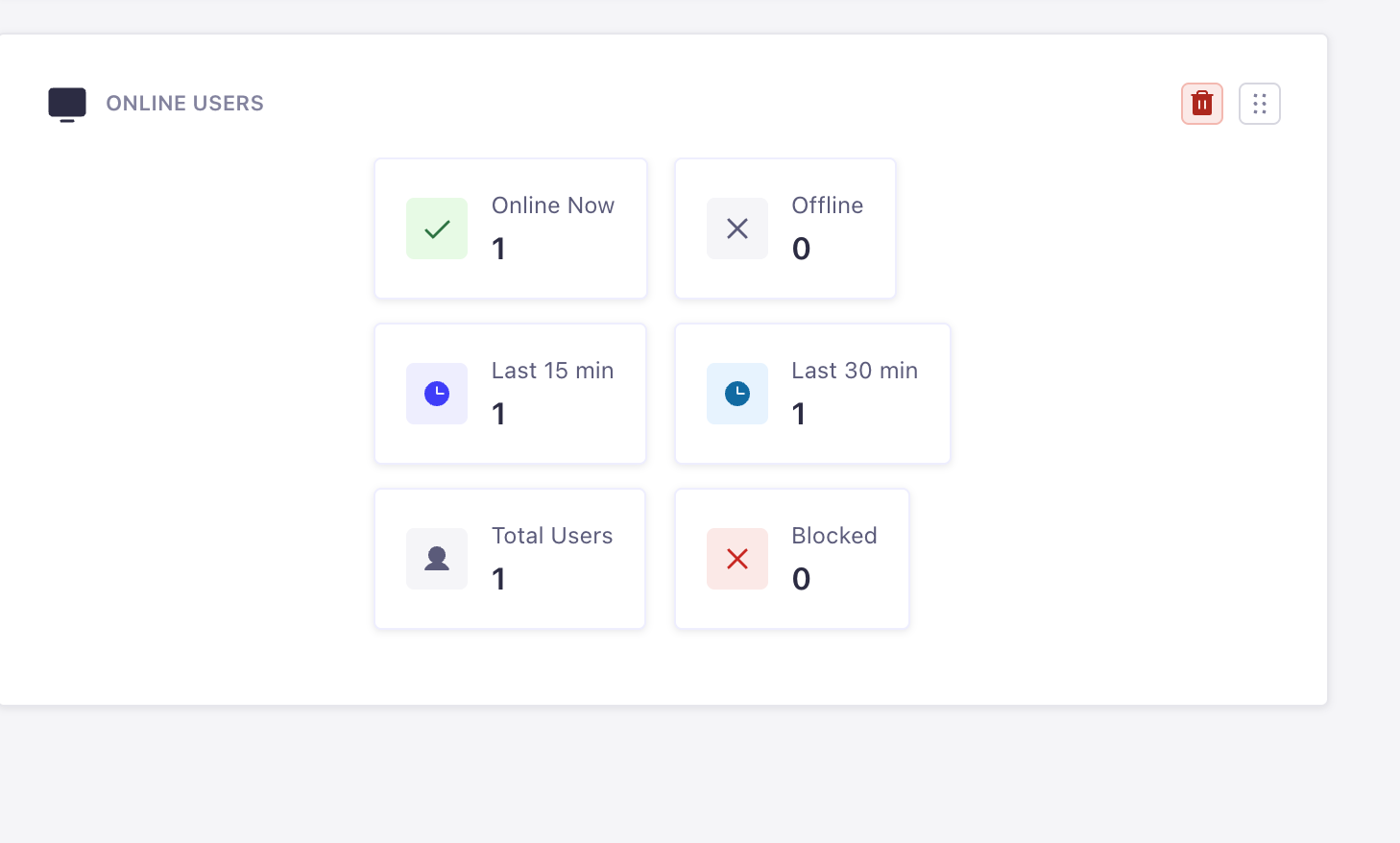
On your Strapi homepage:
- See online users instantly
- Active in last 15/30 minutes
- Total users count
- Blocked users count
- No need to navigate anywhere!
Main Dashboard - See All Active Sessions
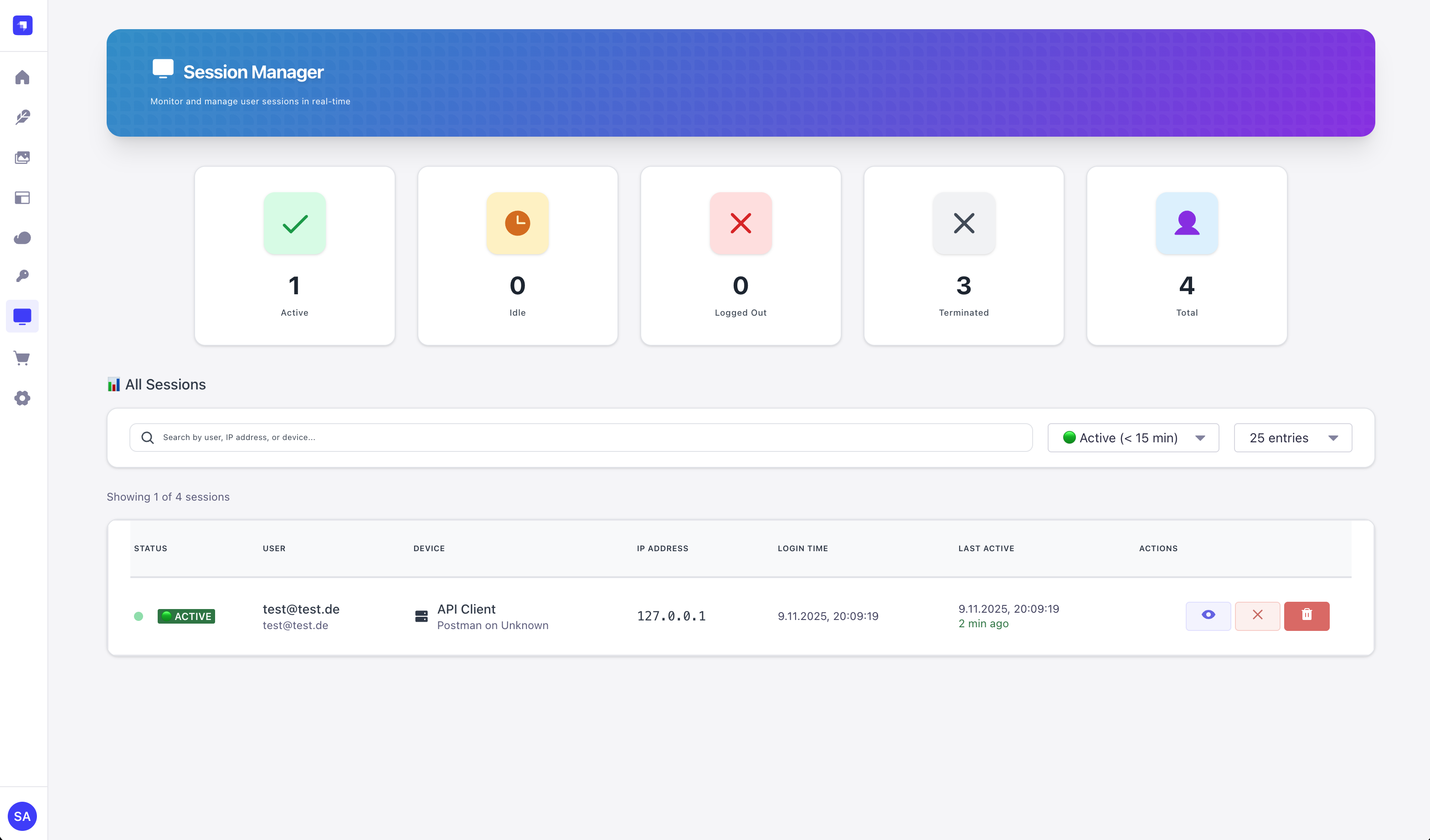
What you see:
- Who is logged in right now (green = online)
- When they logged in
- What device they're using
- Their IP address and location
- One-click session termination
Session Details Modal
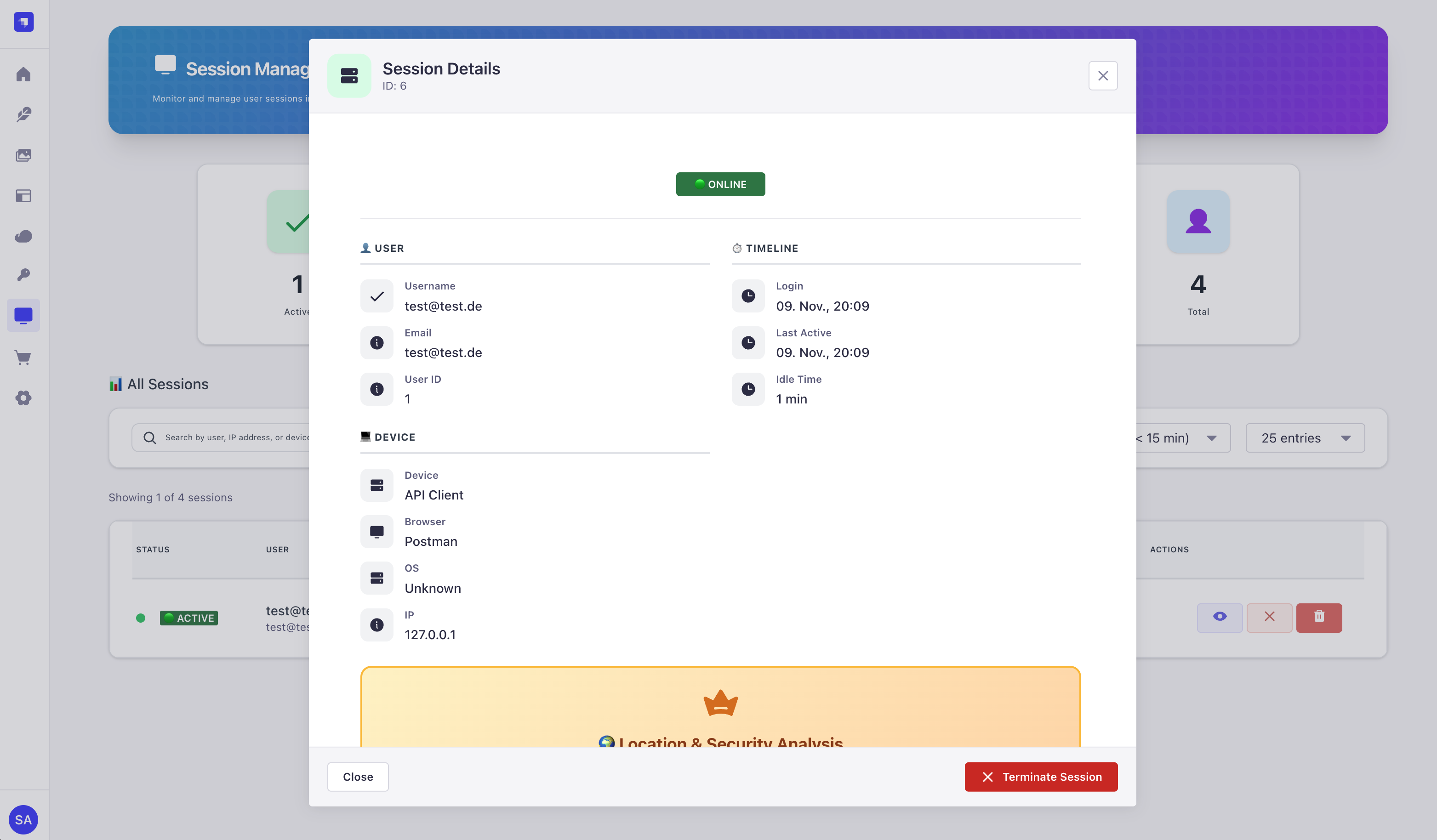
Click any session to see:
- Full device information
- Browser and operating system
- Complete session history
- IP geolocation
- Security risk score
Content Manager Integration
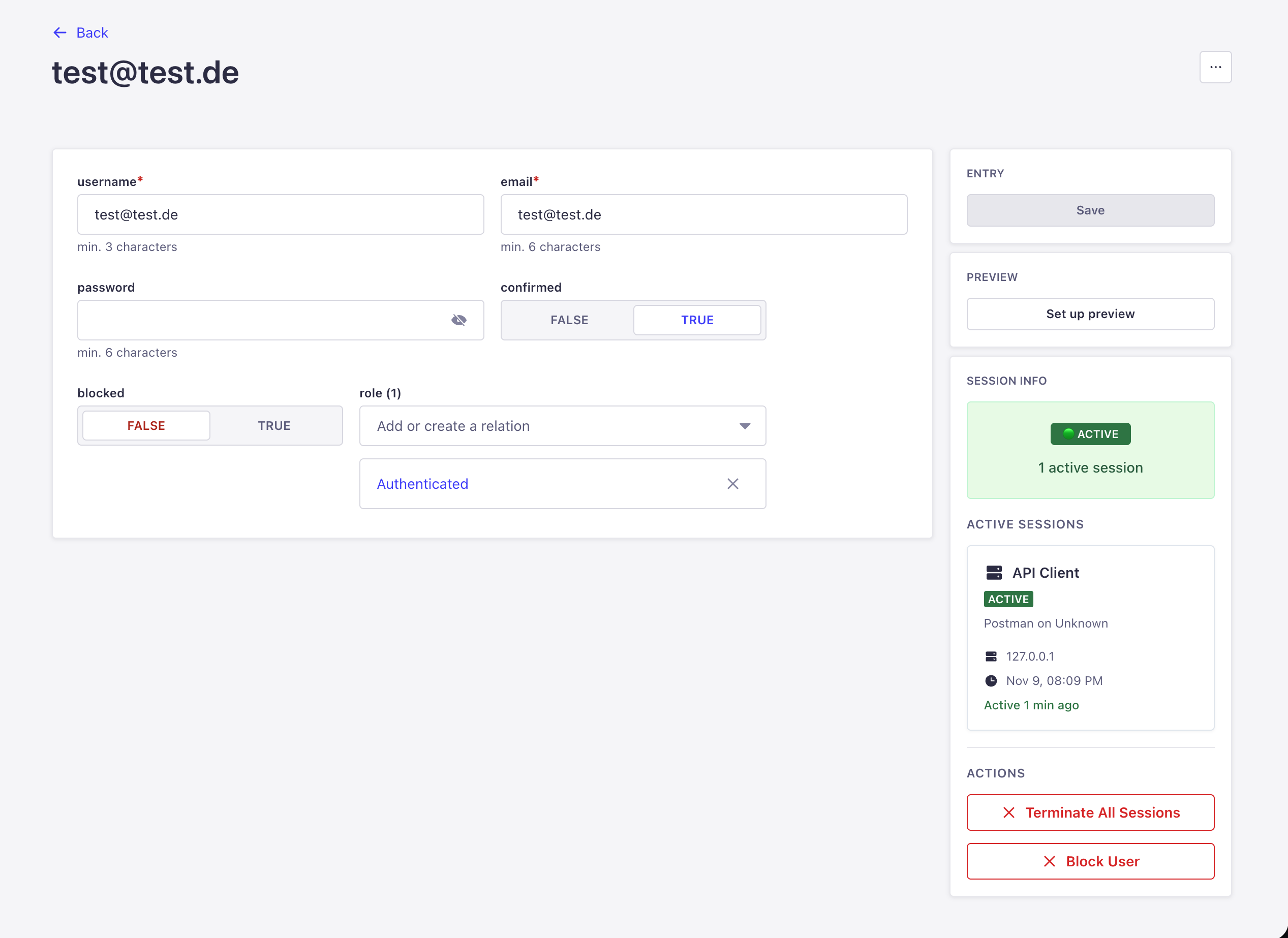
When viewing a user:
- Sidebar shows their active sessions
- Quick actions (terminate, block)
- Offline/Online status indicator
- No need to leave the page!
Settings Page
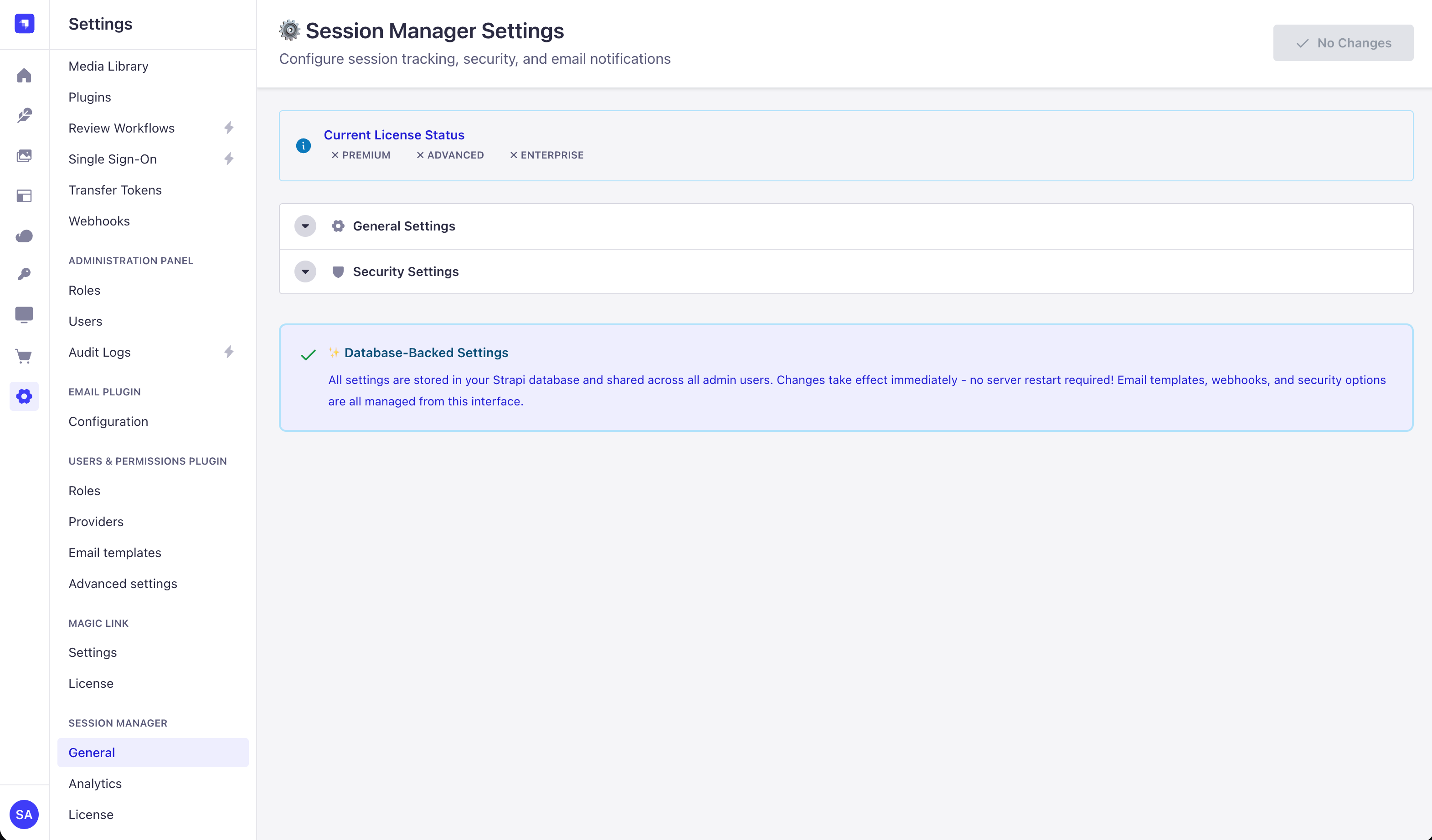
Easy configuration:
- Session timeouts
- Rate limiting
- Email alerts
- Webhook notifications
- Geo-blocking rules
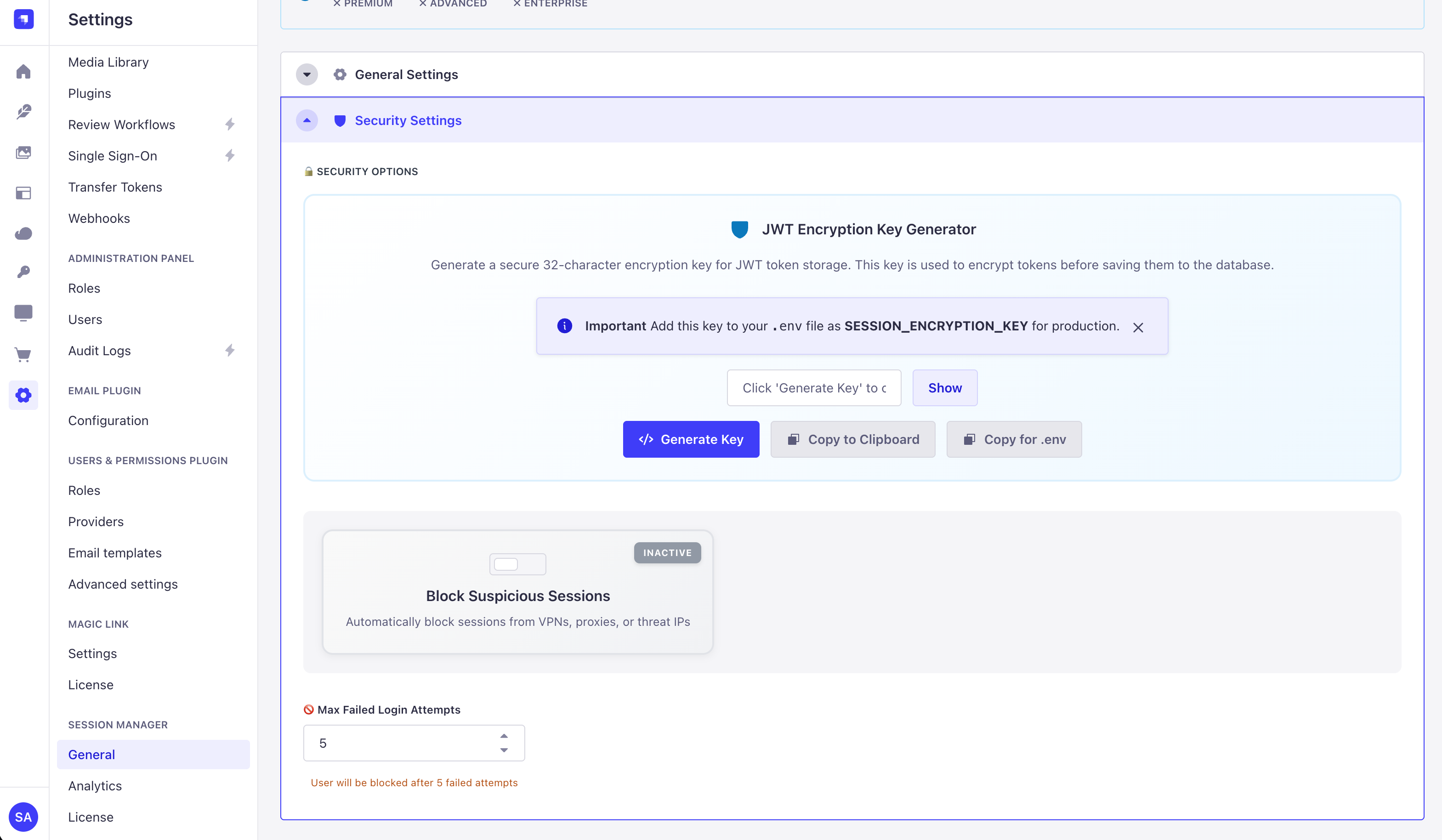
Advanced security:
- Encryption key generator (one click!)
- Country allow/block lists
- VPN detection
- Threat blocking
What This Plugin Does
Simple Version
When users login:
- Plugin saves who logged in, when, and from where
- You can see them in the dashboard (see screenshot above)
- You can force-logout anyone anytime
When users logout:
- Plugin marks their session as "logged out"
- They disappear from the active sessions list
- Manual logout permanently blocks session reactivation (security feature)
Session Timeout vs Manual Logout:
- Timeout: Session can be reactivated on next request (seamless UX)
- Manual Logout: Session is permanently terminated (security-first)
While users are active:
- Plugin updates their "last seen" time
- You always know who's currently using your app
Quick Install
Step 1: Install
npm install strapi-plugin-magic-sessionmanagerStep 2: Enable Plugin
Add this to config/plugins.ts:
export default () => ({
  'magic-sessionmanager': {
    enabled: true,
  },
});
Step 3: Rebuild & Start
npm run build
npm run develop
Step 4: Open Dashboard
- Go to Strapi Admin:
http://localhost:1337/admin - Look in the left sidebar for "Sessions"
- Click it!
- You'll see the dashboard (like the screenshot above)
That's it! You're done!
Security Features (Optional)
Encryption Key (Recommended)
Your JWT tokens are encrypted before saving to database. Generate a key:
In Admin Panel:
- Go to Sessions → Settings
- Scroll to "JWT Encryption Key Generator"
- Click "Generate Key"
- Click "Copy for .env"
- Paste into your
.envfile - Restart Strapi
Or generate manually:
node -e "console.log(require('crypto').randomBytes(32).toString('base64'))"Then add to .env:
SESSION_ENCRYPTION_KEY=your-key-hereWhy? If someone hacks your database, they can't steal user sessions!
Main Features Explained Simply
1. See Who's Logged In
Dashboard Tab:
- Shows all active users
- Green badge = currently online
- Gray badge = logged out
- Click to see details
2. Force Logout Anyone
Need to kick someone out?
- Find their session
- Click "Terminate"
- Done! They're logged out immediately
Even works if they have refresh tokens! (See below)
3. Session Details
Click any session to see:
- When they logged in
- Last time they did something
- What browser/device they use
- Their IP address
- Location
4. Multiple Devices
Users can login from:
- Desktop computer
- Phone
- Tablet
- All at the same time!
Each login = separate session. You can see them all and logout each individually.
5. Auto-Cleanup
Inactive sessions are automatically cleaned up:
- If user doesn't do anything for 15 minutes (configurable)
- Session is marked as "inactive"
- Keeps your database clean
Refresh Token Protection (Advanced)
The Problem (Without This Plugin)
Admin kicks out a user
   ↓
User has "refresh token"
   ↓
User gets new login token automatically
   ↓
User is back in! 😱
The Solution (With This Plugin)
Admin kicks out a user
   ↓
User tries to use refresh token
   ↓
Plugin blocks it! 🚫
   ↓
User MUST login again
How to enable:
Add to config/plugins.ts:
'users-permissions': {
  config: {
    jwtManagement: 'refresh',  // Enable refresh tokens
    sessions: {
      accessTokenLifespan: 3600,  // 1 hour
      maxRefreshTokenLifespan: 2592000,  // 30 days
    },
  },
}
What this does:
- Users stay logged in longer (better experience)
- But admins can still force-logout completely (better security)
- Best of both worlds!
Security Features
IP Geolocation
See where users login from:
- Country (with flag! )
- City
- ISP Provider
- Coordinates (for map)
Local GeoIP Firewall (Recommended)
For login blocking, use a local MaxMind GeoLite2 Country database. This avoids remote API timeouts and rate limits in the login path.
- Create a free MaxMind account and download
GeoLite2-Country.mmdb: https://dev.maxmind.com/geoip/geolite2-free-geolocation-data/ - Store the file on your Strapi server, for example:
/var/lib/strapi/GeoLite2-Country.mmdb - Configure the plugin:
MAGIC_SESSIONMANAGER_GEOIP_DATABASE=/var/lib/strapi/GeoLite2-Country.mmdb
MAXMIND_ACCOUNT_ID=your-account-id
MAXMIND_LICENSE_KEY=your-license-key
You can also manage this from the Strapi admin UI. Open
Magic Session Manager -> Settings -> Geofencing, choose local-mmdb,
enter the MaxMind account ID and license key, then use Download / Update DB.
The plugin stores the credentials in the Strapi plugin store and never returns
the license key to the browser after saving it.
Download or update the database. The CLI updater needs your MaxMind credentials via environment variables (the in-admin updater stores them in the Strapi plugin store instead):
export MAXMIND_ACCOUNT_ID=your_account_id
export MAXMIND_LICENSE_KEY=your_license_key
npm run geoip:update
When installed as a package in a Strapi project, run the packaged binary:
npx strapi-magic-sessionmanager-geoipThe updater checks MaxMind's Last-Modified header first and skips the download
when the local metadata is current. Use npm run geoip:update -- --force in the
plugin repo or npx strapi-magic-sessionmanager-geoip --force in an installed
Strapi project to force a refresh. Schedule it weekly or twice weekly with
cron/systemd. MaxMind requires GeoLite databases to stay up to date and
currently limits GeoLite users to 30 database downloads per day.
// config/plugins.ts
export default () => ({
  'magic-sessionmanager': {
    enabled: true,
    config: {
      geoIpProvider: 'local-mmdb',
      geoIpDatabasePath: process.env.MAGIC_SESSIONMANAGER_GEOIP_DATABASE,
      // "auto": fail closed for suspicious-session blocking, fail open for plain geofencing
      // "block": fail closed whenever GEOIP lookup is unavailable
      // "allow": fail open whenever GEOIP lookup is unavailable
      geoLookupFailureMode: 'block',
      enableGeofencing: true,
      allowedCountries: ['DE', 'AT', 'CH'],
    },
  },
});
Provider options:
local-mmdb: local MaxMind-compatible database onlyauto: use local database when configured, otherwise use the legacy remote provideripapi: legacy remote providerdisabled: no GEOIP lookup
Country firewall rules use the local database. VPN/proxy/threat detection still requires a provider that supplies those risk signals; a free country database does not reliably identify VPNs or proxies.
Threat Detection
Automatically check if IP is:
- VPN
- Proxy
- Known threat
- Security score (0-100)
Auto-Blocking
Block logins from:
- Specific countries
- VPNs or proxies
- Low security score IPs
- Known threat IPs
Notifications
Get alerts when:
- Suspicious login detected
- VPN used
- New location login
- Send to Discord or Slack!
Email Alerts Setup
The Session Manager uses Strapi's Email Plugin to send notifications. You need to configure an email provider first.
Step 1: Install Email Provider
Choose one of these providers:
Option A: Nodemailer (Recommended)
npm install @strapi/provider-email-nodemailerOption B: SendGrid
npm install @strapi/provider-email-sendgridOption C: Mailgun
npm install @strapi/provider-email-mailgunStep 2: Configure Email Plugin
Add to config/plugins.ts:
export default () => ({
  // Email configuration
  email: {
    config: {
      provider: 'nodemailer',
      providerOptions: {
        host: process.env.SMTP_HOST || 'smtp.gmail.com',
        port: process.env.SMTP_PORT || 587,
        auth: {
          user: process.env.SMTP_USER,
          pass: process.env.SMTP_PASSWORD,
        },
      },
      settings: {
        defaultFrom: process.env.SMTP_DEFAULT_FROM || 'noreply@yourapp.com',
        defaultReplyTo: process.env.SMTP_DEFAULT_REPLY_TO || 'support@yourapp.com',
      },
    },
  },

  // Session Manager configuration
  'magic-sessionmanager': {
    enabled: true,
  },
});
Step 3: Add Environment Variables
Add to your .env file:
SMTP_HOST=smtp.gmail.com
SMTP_PORT=587
SMTP_USER=your-email@gmail.com
SMTP_PASSWORD=your-app-password
SMTP_DEFAULT_FROM=noreply@yourapp.com
SMTP_DEFAULT_REPLY_TO=support@yourapp.com
For Gmail:
- Use an App Password, not your regular password!
Step 4: Enable in Admin Panel
- Go to Sessions → Settings
- Scroll to "Email Notifications"
- Toggle "Enable Email Alerts" to ON
- Customize email templates (optional)
- Click Save
Step 5: Test It
Trigger a suspicious login (e.g., use a VPN) and check if the email arrives!
Troubleshooting:
- Check Strapi logs for email errors
- Verify SMTP credentials are correct
- Test SMTP connection with a tool like smtp-tester
Content-API Endpoints (For Frontend/Apps)
All Content-API endpoints require a valid JWT token in the Authorization header.
Users can only access their own sessions.
Get My Sessions
Returns all sessions for the authenticated user.
GET /api/magic-sessionmanager/my-sessions
Authorization: Bearer <JWT>
Response:
{
  "data": [
    {
      "id": 41,
      "documentId": "abc123xyz",
      "sessionId": "sess_m5k2h_8a3b1c2d_f9e8d7c6",
      "ipAddress": "192.168.1.100",
      "userAgent": "Mozilla/5.0 (Macintosh; Intel Mac OS X 10_15_7) AppleWebKit/537.36...",
      "loginTime": "2026-01-02T10:30:00.000Z",
      "lastActive": "2026-01-02T13:45:00.000Z",
      "logoutTime": null,
      "isActive": true,
      "deviceType": "desktop",
      "browserName": "Chrome 143",
      "osName": "macOS 10.15.7",
      "geoLocation": null,
      "securityScore": null,
      "isCurrentSession": true,
      "isTrulyActive": true,
      "minutesSinceActive": 2
    },
    {
      "id": 40,
      "documentId": "def456uvw",
      "sessionId": "sess_m5k1g_7b2a0c1d_e8d7c6b5",
      "ipAddress": "10.0.0.50",
      "userAgent": "Mozilla/5.0 (iPhone; CPU iPhone OS 17_0 like Mac OS X)...",
      "loginTime": "2026-01-01T08:15:00.000Z",
      "lastActive": "2026-01-01T12:00:00.000Z",
      "logoutTime": null,
      "isActive": true,
      "deviceType": "mobile",
      "browserName": "Safari",
      "osName": "iOS 17",
      "geoLocation": null,
      "securityScore": null,
      "isCurrentSession": false,
      "isTrulyActive": false,
      "minutesSinceActive": 1545
    }
  ],
  "meta": {
    "count": 2,
    "active": 1
  }
}
Get Current Session
Returns only the session associated with the current JWT token.
GET /api/magic-sessionmanager/current-session
Authorization: Bearer <JWT>
Response:
{
  "data": {
    "id": 41,
    "documentId": "abc123xyz",
    "sessionId": "sess_m5k2h_8a3b1c2d_f9e8d7c6",
    "ipAddress": "192.168.1.100",
    "userAgent": "Mozilla/5.0 (Macintosh; Intel Mac OS X 10_15_7) AppleWebKit/537.36...",
    "loginTime": "2026-01-02T10:30:00.000Z",
    "lastActive": "2026-01-02T13:45:00.000Z",
    "logoutTime": null,
    "isActive": true,
    "deviceType": "desktop",
    "browserName": "Chrome 143",
    "osName": "macOS 10.15.7",
    "geoLocation": null,
    "securityScore": null,
    "isCurrentSession": true,
    "isTrulyActive": true,
    "minutesSinceActive": 2
  }
}
Logout (Current Session)
Terminates only the current session.
POST /api/magic-sessionmanager/logout
Authorization: Bearer <JWT>
Response:
{
  "message": "Logged out successfully"
}
Logout All Devices
Terminates ALL sessions for the authenticated user (logs out everywhere).
POST /api/magic-sessionmanager/logout-all
Authorization: Bearer <JWT>
Response:
{
  "message": "Logged out from all devices successfully"
}
Terminate Specific Session
Terminates a specific session (not the current one). Useful for "Log out other devices".
DELETE /api/magic-sessionmanager/my-sessions/:sessionId
Authorization: Bearer <JWT>
Response:
{
  "message": "Session abc123xyz terminated successfully",
  "success": true
}
Error (trying to terminate current session):
{
  "error": {
    "status": 400,
    "message": "Cannot terminate current session. Use /logout instead."
  }
}
Admin-API Endpoints (For Admin Panel)
These endpoints require admin authentication.
Get All Sessions
GET /magic-sessionmanager/sessionsGet Active Sessions Only
GET /magic-sessionmanager/sessions/activeForce Terminate Session
POST /magic-sessionmanager/sessions/:sessionId/terminateTerminate All User Sessions
POST /magic-sessionmanager/user/:userId/terminate-allBlock/Unblock User
POST /magic-sessionmanager/user/:userId/toggle-blockClean Inactive Sessions
POST /magic-sessionmanager/sessions/clean-inactiveSettings You Can Change
In config/plugins.ts:
'magic-sessionmanager': {
  config: {
    // How often to update "last seen" (in milliseconds)
    lastSeenRateLimit: 30000,  // Default: 30 seconds

    // When to mark sessions inactive (in milliseconds)
    inactivityTimeout: 900000,  // Default: 15 minutes
  },
}
In Admin Panel (Settings Tab):
- Email alerts on/off
- Webhook URLs (Discord/Slack)
- Countries to block/allow
- VPN detection on/off
- Generate encryption key
Common Problems & Fixes
I don't see the Sessions menu
Fix:
- Make sure plugin is in
config/plugins.ts - Run
npm run build - Restart Strapi
- Refresh browser (Cmd+Shift+R)
Sessions not being created
Fix:
- Check Strapi logs for errors
- Make sure users are logging in (not already logged in)
- Check database is working
401 or 403 errors
Fix:
- 401 = Not logged in (need to login as admin)
- 403 = Not allowed (check you're admin, not regular user)
Database table "sessions" already exists
Fix:
- This plugin uses
magic_sessionstable (notsessions) - If you see this error, another plugin is using that name
- Our plugin automatically uses the correct name
When To Use This Plugin
Perfect for:
- Multi-tenant apps (see which tenant users are online)
- E-commerce (track customer sessions)
- Collaboration tools (show who's currently working)
- Security-critical apps (force-logout compromised accounts)
- Compliance requirements (session audit logs)
Not needed if:
- Single-user app
- No need to see who's logged in
- No security requirements
How To Test It
Quick Manual Test
- Login to your Strapi app (frontend or admin)
- Go to Admin → Sessions
- You should see your session!
- Click "Terminate" on your session
- Try to use the app → You're logged out!
With Postman
1. Login:
POST http://localhost:1337/api/auth/local
Body: { "identifier": "user@test.com", "password": "pass123" }
2. Check session created:
GET http://localhost:1337/magic-sessionmanager/sessions3. Logout:
POST http://localhost:1337/api/auth/logout
Authorization: Bearer YOUR_JWT_TOKEN
Done!
What Gets Installed
When you install this plugin, you get:
- Dashboard to see all sessions
- Session tracking (automatic)
- Force logout buttons
- Activity monitoring
- Encryption (secure)
- Multi-device support
All features are included for free:
- IP Geolocation
- Threat detection
- Auto-blocking
- Email/webhook alerts
FAQ
Q: Do I need to change my Strapi code?
A: No! Just install and enable the plugin.
Q: Will this break my existing logins?
A: No! It just tracks them, doesn't change them.
Q: Can users see each other's sessions?
A: No! Only admins can see all sessions. Users only see their own.
Q: What if I uninstall the plugin?
A: Sessions will stop being tracked. Everything else works normally.
Q: Does it slow down my app?
A: No! It has smart rate-limiting to prevent database spam.
Q: Can I customize the dashboard?
A: Not yet, but it's planned for future versions!
Resources
- NPM: https://www.npmjs.com/package/strapi-plugin-magic-sessionmanager
- GitHub: https://github.com/Schero94/Magic-Sessionmanager
- Report Bugs: https://github.com/Schero94/Magic-Sessionmanager/issues
License
MIT License - Free to use for personal and commercial projects!
Copyright 2025 Schero D.
Optional license-key activation
The admin panel includes a License page where you can register an optional key. This is only used for install tracking and support context; it does not unlock or restrict any plugin feature.
See LICENSE for full terms.
Supported Languages
The admin interface is available in 5 languages:
- English - Default
- Deutsch - German
- Español - Spanish
- Français - French
- Português - Portuguese
Language automatically follows your Strapi admin interface setting.
Made for Strapi v5