
hcg-virtual-scroll
High-performance virtual scrolling for vanilla JavaScript. Only the visible items are in the DOM at any time - no framework required, no dependencies.
- Handles 1 000 000+ items without UI freeze
- Fixed or dynamic item heights
- Works with
<div>,<ul>,<ol>, and<table> - DOM recycling, infinite scroll, chat/reverse mode
- Empty state and loading state built in
- ResizeObserver, adaptive overscan, ARIA support
- Works with React, Vue, Svelte, or no framework at all
Version: 1.0.5 · License: MIT · Author: HTML Code Generator
Demo
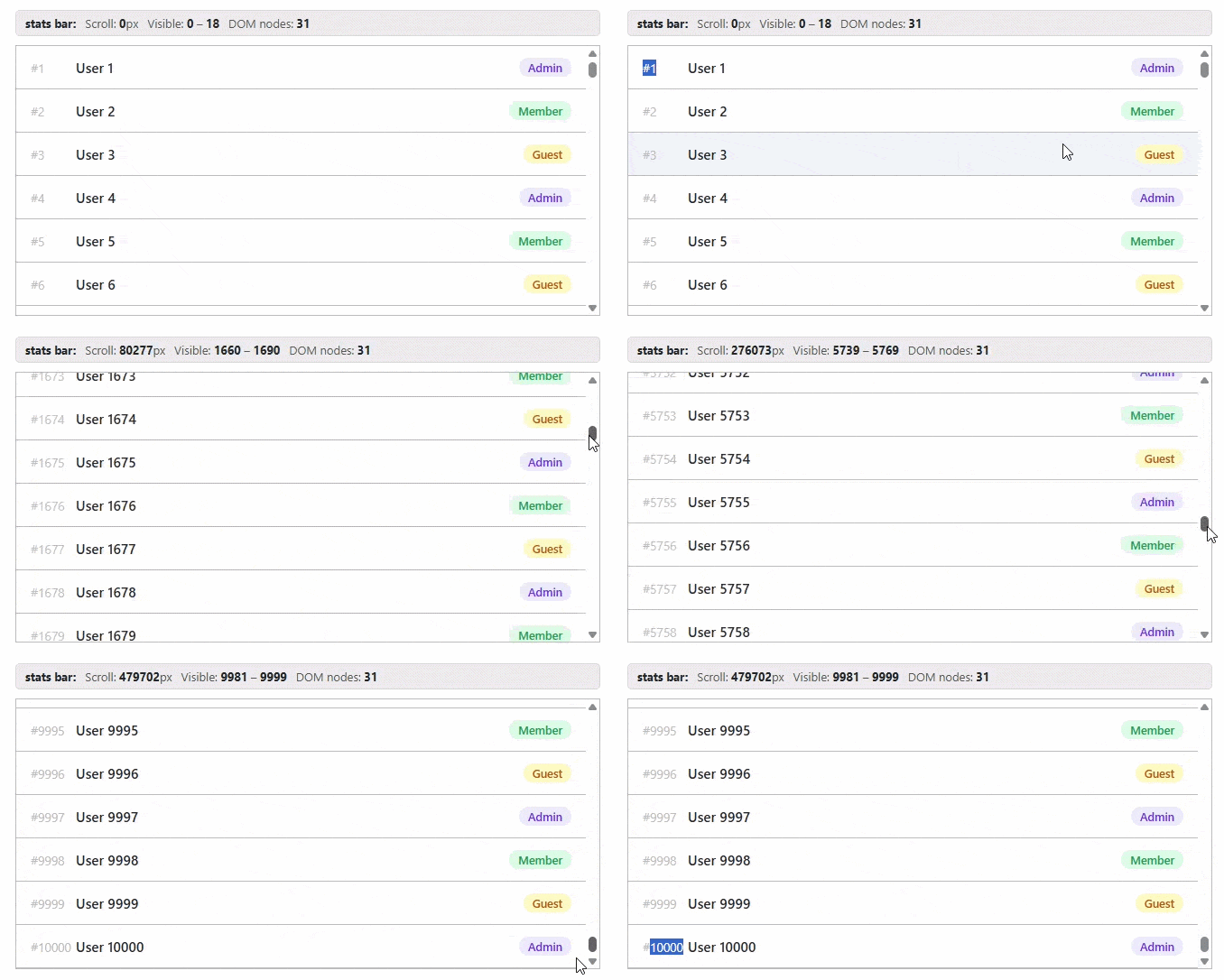
100,000 rows scrolling smoothly - only the visible rows are ever in the DOM.
The same scroll with a live counter - the rendered element count stays around 10 no matter how far you scroll.
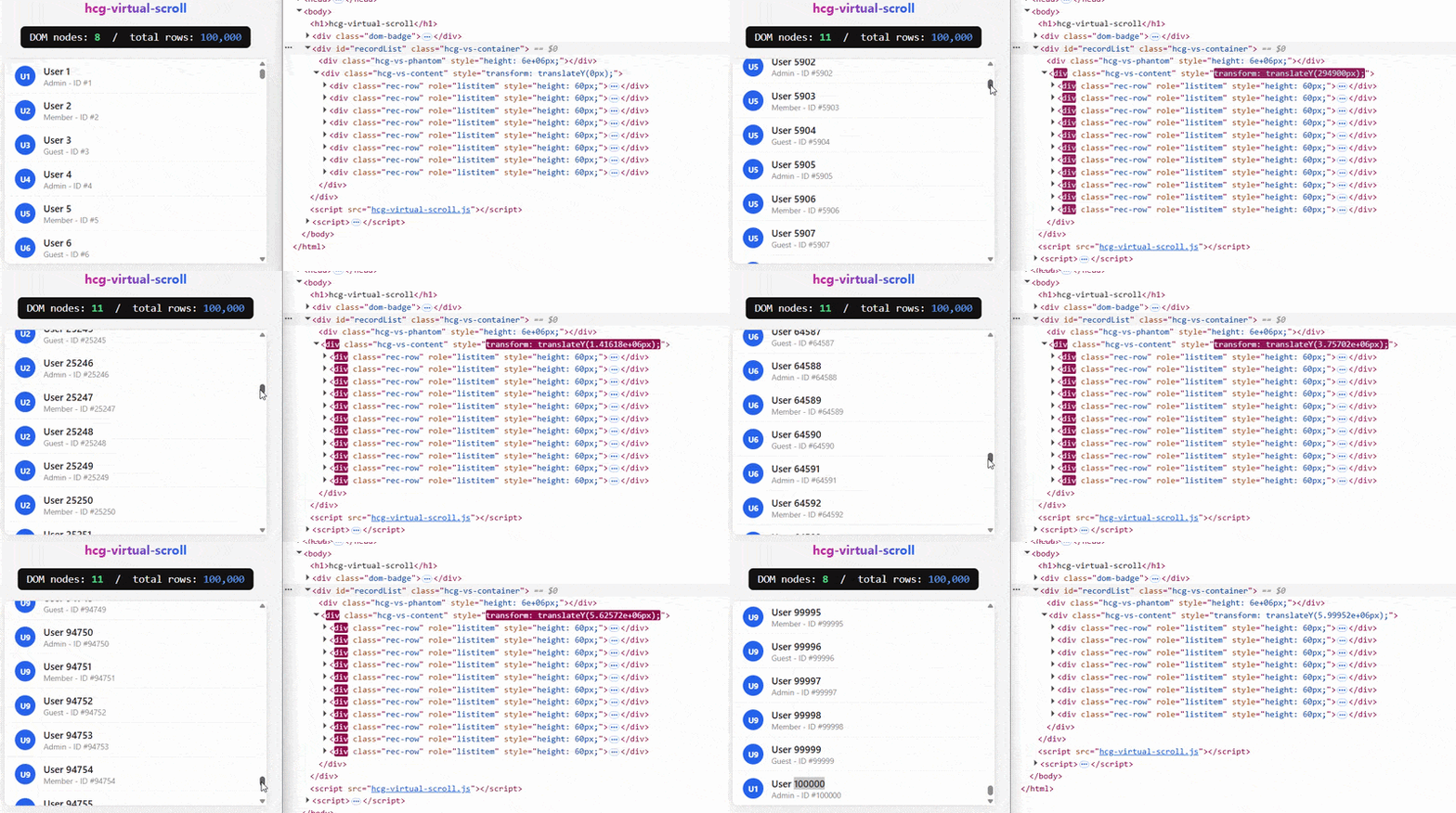
Table of Contents
- Quick Start
- Working With Your Data
- Required HTML & CSS
- Options
- Callbacks
- Public Methods
- Usage - DIV List
- Usage - UL / OL List
- Usage - TABLE
- Dynamic Item Heights
- DOM Recycling with keyField
- Infinite Scroll
- Chat / Reverse Mode
- Empty State
- Loading State
- Live Config Hot-Swap
- Multiple Instances
- Using with React, Vue & Svelte
- Security Note
Quick Start
<!-- 1. Add the stylesheet -->
<link rel="stylesheet" href="hcg-virtual-scroll.css" />

<!-- 2. Create a container -->
<div id="myList" style="height: 500px;"></div>

<!-- 3. Load the library -->
<script src="hcg-virtual-scroll.js"></script>

<!-- 4. Initialise -->
<script>
  const data = Array.from({ length: 10000 }, (_, i) => ({ id: i, name: `Item ${i}` }));

  const vs = new HCGVirtualScroll(data, {
    container:  '#myList',
    itemHeight: 50,
    renderItem: (item, index) => `<div class="row">#${index} - ${item.name}</div>`,
  });
</script>
Important: Always use
new HCGVirtualScroll(...). Calling withoutnewthrows aTypeError.
Working With Your Data
HCGVirtualScroll accepts any plain JavaScript array. There are no required field names, no special format, and no conversion needed. Whatever your data looks like, just pass it in and access the fields inside renderItem.
Any array works
Array of objects (most common):
const users = [
  { id: 1, name: 'Alice',   email: 'alice@example.com',  role: 'Admin'  },
  { id: 2, name: 'Bob',     email: 'bob@example.com',    role: 'Member' },
  { id: 3, name: 'Carol',   email: 'carol@example.com',  role: 'Member' },
  // ... hundreds or thousands more
];

const vs = new HCGVirtualScroll(users, {
  container:  '#userList',
  itemHeight: 56,
  renderItem(item, index) {
    return `<div class="row">
      <span>${index + 1}</span>
      <span>${item.name}</span>
      <span>${item.email}</span>
      <span>${item.role}</span>
    </div>`;
  },
});
Array of strings:
const countries = ['Afghanistan', 'Albania', 'Algeria', 'Andorra', 'Angola'];

const vs = new HCGVirtualScroll(countries, {
  container:  '#countryList',
  itemHeight: 44,
  renderItem(item, index) {
    return `<div class="row">${index + 1}. ${item}</div>`;
  },
});
Array of numbers:
const prices = [9.99, 14.99, 4.50, 29.99, 1.00];

const vs = new HCGVirtualScroll(prices, {
  container:  '#priceList',
  itemHeight: 44,
  renderItem(item, index) {
    return `<div class="row">#${index} - $${item.toFixed(2)}</div>`;
  },
});
Load data from an API
Create an empty list, call showLoading() while fetching, then updateData() and hideLoading() when the response arrives:
const vs = new HCGVirtualScroll([], {
  container:   '#fetch-data',
  itemHeight:  56,
  loadingText: 'Fetching data...',
  emptyText:   'No results found',
  renderItem:  item => `<div class="row">${item.title}</div>`,
});

vs.showLoading();

fetch('https://jsonplaceholder.typicode.com/posts')
  .then(res => res.json())
  .then(data => {
    vs.updateData(data);
    vs.hideLoading();
  });
Use existing data from your app
If you already have an array in your code, just pass it directly - no conversion needed.
// Data already in your app
const cart      = getCartItems();
const employees = store.getState().employees;
const results   = searchResults.filter(r => r.active);

const vs = new HCGVirtualScroll(results, {
  container:  '#resultList',
  itemHeight: 60,
  renderItem(item) {
    return `<div class="row">${item.title}</div>`;
  },
});
Update the list when your data changes:
// User applies a filter - pass the new filtered array
function applyFilter(keyword) {
  const filtered = allItems.filter(item =>
    item.name.toLowerCase().includes(keyword.toLowerCase())
  );
  vs.updateData(filtered);
}

// User sorts - pass the sorted array
function sortByName() {
  const sorted = [...allItems].sort((a, b) => a.name.localeCompare(b.name));
  vs.updateData(sorted);
}
Note: Always filter and sort your array before passing it to
updateData(). Never mutate the array directly after passing it in - always create a new array and callupdateData().
Real-world data shapes
The library works with whatever field names your API or database returns. You are not required to rename anything.
E-commerce products:
const products = [
  { product_id: 101, product_name: 'Laptop', price: 999.00, stock: 15, category: 'Electronics' },
  { product_id: 102, product_name: 'Mouse',  price: 29.99,  stock: 80, category: 'Accessories' },
];

const vs = new HCGVirtualScroll(products, {
  container:  '#productList',
  itemHeight: 64,
  renderItem(item) {
    return `<div class="row">
      <span>${item.product_name}</span>
      <span>$${item.price.toFixed(2)}</span>
      <span>${item.stock} in stock</span>
    </div>`;
  },
});
Blog posts:
const posts = [
  { slug: 'hello-world', title: 'Hello World', author: 'Alice', date: '2025-01-01', tags: ['intro'] },
  { slug: 'tips-js',     title: 'JS Tips',     author: 'Bob',   date: '2025-01-05', tags: ['js']    },
];

const vs = new HCGVirtualScroll(posts, {
  container:  '#postList',
  itemHeight: 72,
  renderItem(item) {
    return `<div class="row">
      <div class="post-title">${item.title}</div>
      <div class="post-meta">By ${item.author} on ${item.date}</div>
    </div>`;
  },
});
Chat messages:
const messages = [
  { msg_id: 1, sender: 'Alice', body: 'Hey!',        timestamp: '10:01 AM' },
  { msg_id: 2, sender: 'Bob',   body: 'Hi there!',   timestamp: '10:02 AM' },
  { msg_id: 3, sender: 'Alice', body: 'How are you?', timestamp: '10:03 AM' },
];

const vs = new HCGVirtualScroll(messages, {
  container:  '#chatList',
  itemHeight: 54,
  reverse:    true,
  renderItem(item) {
    const isMe = item.sender === 'Alice';
    return `<div class="chat-row ${isMe ? 'me' : 'other'}">
      <div class="bubble">${item.body}</div>
      <div class="time">${item.timestamp}</div>
    </div>`;
  },
});
Pre-calculate heights for dynamic rows
When item heights vary (expandable rows, multi-line text, cards of different sizes), calculate the height per item before passing the array in. This avoids DOM measurement during scrolling.
// Add a height property to each item based on its content
const posts = rawPosts.map(post => ({
  ...post,
  height: post.body.length > 100 ? 120 : 60,  // taller for long posts
}));

const vs = new HCGVirtualScroll(posts, {
  container:           '#postList',
  itemHeight:          item => item.height,    // read the pre-calculated value
  estimatedItemHeight: 80,                     // fallback if height is missing
  renderItem(item) {
    return `<div class="post-row">
      <strong>${item.title}</strong>
      <p>${item.body}</p>
    </div>`;
  },
});
Tips for large datasets
// 1. Filter and sort ONCE before passing in - not on every scroll
const prepared = rawData
  .filter(item => item.active)
  .sort((a, b) => a.name.localeCompare(b.name));

const vs = new HCGVirtualScroll(prepared, { ... });

// 2. When the filter changes, pass a new array - do not mutate
searchInput.addEventListener('input', e => {
  const q = e.target.value.toLowerCase();
  vs.updateData(rawData.filter(item => item.name.toLowerCase().includes(q)));
});

// 3. For huge lists (100k+ items), use append() for pagination
//    instead of passing all items at once
const vs = new HCGVirtualScroll(firstPage, {
  ...opts,
  onReachEnd() {
    fetchNextPage().then(page => vs.append(page));
  },
});
Required HTML & CSS
The library injects two internal elements inside your container:
container
  |- .hcg-vs-phantom   (invisible spacer - sets the scrollbar height)
  \- .hcg-vs-content   (visible items - moved with translateY)
Your container only needs:
#myList {
  height: 500px;       /* fixed height required */
  overflow-y: auto;    /* handled automatically by .hcg-vs-container class */
}
The library adds the hcg-vs-container class to your element automatically. You do not need to add it yourself.
Options
Required
| Option | Type | Description |
|---|---|---|
container |
string or Element |
CSS selector ('#id', '.class'), element ID string, or a direct DOM reference |
renderItem |
Function |
(item, index) => HTML string or HTMLElement - called for each visible item |
Optional
| Option | Type | Default | Description |
|---|---|---|---|
itemHeight |
number or Function |
65 |
Fixed height in px, or (item, index) => number for dynamic heights. A fixed number must be greater than 0 or the constructor throws |
estimatedItemHeight |
number |
same as itemHeight |
Fallback height used when the itemHeight function returns 0, a negative number, or a non-number |
bufferSize |
number |
3 |
Extra items rendered above and below the visible area |
containerHeight |
number |
- | Sets the container height in px - useful when height is not set in CSS. Accepts a number (500) or a numeric string ('500') |
maxHeight |
number |
10 000 000 |
Maximum spacer height in px - prevents browser limits on huge lists |
keyField |
string |
- | Item property name used as unique key - enables DOM recycling |
adaptiveOverscan |
boolean |
true |
Doubles/quadruples buffer automatically during fast scrolling |
reverse |
boolean |
false |
Anchors to bottom - for chat, feeds, and activity logs |
ariaLabel |
string |
- | Sets aria-label on the inner list element |
reachEndThreshold |
number |
5 |
How many items from the end/start trigger reach callbacks |
emptyText |
string |
- | Plain text shown when the list has no items |
emptyHTML |
string |
- | Custom HTML shown when the list has no items - takes priority over emptyText |
loadingText |
string |
'Loading...' |
Text shown while loading state is active |
loadingHTML |
string |
- | Custom HTML shown while loading state is active - takes priority over loadingText |
Callbacks
All callbacks are optional. Pass them in the options object.
onScroll(scrollTop, range)
Fires on every scroll event (throttled to one call per animation frame).
onScroll(scrollTop, { start, end }) {
  console.log('Scrolled to', scrollTop, 'px');
  console.log('Visible range:', start, '-', end);
}| Parameter | Type | Description |
|---|---|---|
scrollTop |
number |
Current scroll position in pixels |
range.start |
number |
First rendered item index |
range.end |
number |
Last rendered item index |
onVisibleRangeChange({ start, end })
Fires only when the rendered range actually changes - not on every scroll pixel.
onVisibleRangeChange({ start, end }) {
  console.log('Range changed:', start, '-', end);
}
onRender(startIndex, endIndex)
Fires after every DOM update (after new items are written to the DOM).
onRender(start, end) {
  console.log(`DOM updated: items ${start} to ${end}`);
}
onReachEnd({ start, end, total }) / onLoadMore (alias)
Fires once when scrolling near the end of the list. Resets when the user scrolls back up. Use for infinite loading.
onReachEnd({ start, end, total }) {
  loadMoreItems().then(batch => vs.append(batch));
}
Control how early it fires with reachEndThreshold (default: 5 items from end). The threshold is measured against the actual viewport edge, not the buffered/overscanned range - so it fires when the real last visible item is within reachEndThreshold of the end, regardless of bufferSize.
The start and end values in the callback payload report the full rendered range (including buffer).
onReachStart({ start, end, total })
Fires once when scrolling near the top of the list. Use for loading history (e.g. chat). Like onReachEnd, the threshold is measured against the actual viewport edge, not the buffered range.
onReachStart({ start, end, total }) {
  loadHistory().then(older => vs.prepend(older));
}
onResize({ width, height })
Fires when the container element is resized (powered by ResizeObserver). The list re-renders automatically - this callback is for your own side effects.
onResize({ width, height }) {
  console.log('Container resized to', width, 'x', height);
}
Public Methods
Data
| Method | Description |
|---|---|
updateData(newData, keepScroll?) |
Replace the entire data array. Pass true as second argument to preserve scroll position |
updateItems(newData) |
Alias for updateData(newData) - always resets scroll to top |
append(items) |
Add items to the end. Scroll position is preserved |
prepend(items) |
Add items to the start. Scroll adjusts automatically to prevent visual jump |
clear() |
Remove all items and reset all internal state |
getData() |
Returns the current data array |
Scroll
| Method | Description |
|---|---|
scrollTo(index, smooth?) |
Scroll so item at index appears at the viewport top. Pass true for smooth scroll |
scrollToTop(smooth?) |
Scroll to position 0 |
scrollToBottom(smooth?) |
Scroll to the last item |
getScrollPosition() |
Returns current scrollTop in px |
Loading & Empty State
| Method | Description |
|---|---|
showLoading() |
Show the loading state and pause all scroll rendering |
hideLoading() |
Hide the loading state and resume normal rendering |
isLoading() |
Returns true if the loading state is currently active |
Config & Lifecycle
| Method | Description |
|---|---|
updateConfig(options) |
Hot-update any option without re-creating the instance. Accepts the same keys as the constructor |
refresh() |
Force a full re-render without changing data. Call after mutating item data in place (see DOM Recycling) |
getVisibleRange() |
Returns { start, end } of the rendered range (includes the overscan buffer, not viewport-only) |
destroy() |
Remove all event listeners and clear the generated DOM. Safe to call more than once |
Usage - DIV List
The simplest and most common setup. Each item is a <div>.
HTML:
<div id="divList" style="height: 500px;"></div>CSS:
.row-item {
  display: flex;
  align-items: center;
  padding: 0 16px;
  border-bottom: 1px solid #eee;
  background: #fff;
  box-sizing: border-box;
}
.row-item:hover { background: #f5f5f5; }
JavaScript:
const data = Array.from({ length: 50000 }, (_, i) => ({
  id:   i,
  name: `User ${i}`,
  role: i % 3 === 0 ? 'Admin' : 'Member',
}));

const vs = new HCGVirtualScroll(data, {
  container:  '#divList',
  itemHeight: 56,
  bufferSize: 4,

  renderItem(item, index) {
    return `<div class="row-item">
      <span style="width:60px;color:#999">#${index}</span>
      <span style="flex:1">${item.name}</span>
      <span style="color:#2563eb">${item.role}</span>
    </div>`;
  },

  onScroll(scrollTop, { start, end }) {
    console.log(`Scroll: ${scrollTop}px | Visible: ${start}-${end}`);
  },
});
Usage - UL List
Use <ul> or <ol> as the container. Each renderItem must return a <li>. The setup is the same for both - swap the tag and container id as needed.
HTML:
<div style="height: 500px; overflow: hidden;">
  <ul id="ul-list" style="height: 100%; list-style: none; padding: 0; margin: 0;"></ul>
</div>

<!-- <ol id="ol-list" style="height:500px;overflow-y:auto;list-style:none;padding:0;margin:0;"></ol> -->
Tip: The scroll container must be the element you pass to
container. For<ul>, wrap it in a<div>and setoverflow-y: autoon the list via CSS. For<ol>, you can pass the<ol>directly withoverflow-y: autoinline as shown in the comment above.
CSS:
#ul-list {
  overflow-y: auto;
}
.list-item {
  display: flex;
  align-items: center;
  padding: 10px 16px;
  border-bottom: 1px solid #f0f0f0;
  background: #fff;
  box-sizing: border-box;
}
JavaScript:
const fruits = Array.from({ length: 10000 }, (_, i) => ({
  id:    i,
  label: `Fruit item #${i}`,
  color: ['#f87171','#60a5fa','#34d399','#fbbf24'][i % 4],
}));

const vs = new HCGVirtualScroll(fruits, {
  container:  '#ul-list',
  itemHeight: 52,
  ariaLabel:  'Fruit list',

  renderItem(item) {
    return `<li class="list-item">
      <span style="width:12px;height:12px;border-radius:50%;background:${item.color};margin-right:12px;flex-shrink:0"></span>
      ${item.label}
    </li>`;
  },
});
Usage - TABLE
For tables, the scroll container is a <div> that the library mounts on - never the <table> or <tbody>. Place the header <table> above that scroll container, and render each row as its own small table that shares the same fixed column widths. This keeps valid markup and aligns every column with the header.
Why not mount on
<tbody>? The library positions rows using an internal spacer element and a CSS transform, which require plain block elements. Those are not valid inside a<table>or<tbody>- the browser ejects them and the layout breaks. Rendering one small table per row avoids this and supports the full 1,000,000+ row range.
CSS - shared column widths, header background on the wrapper, and horizontal scroll on small screens:
.vs-table-wrap {
  overflow-x: auto;
  -webkit-overflow-scrolling: touch;
  border: 1px solid #e5e7eb;
  border-radius: 8px;
}

.vs-table-inner {
  min-width: 520px;
}

#tableHeader {
  width: 100%;
  box-sizing: border-box;
  background: #f9fafb;
  border-bottom: 2px solid #e5e7eb;
}

#tableHeader table,
#tableScroll .hcg-vs-item > table {
  width: 100%;
  border-collapse: collapse;
  table-layout: fixed;
  box-sizing: border-box;
}

#tableHeader th,
#tableScroll .hcg-vs-item td {
  padding: 10px 14px;
  overflow: hidden;
  text-overflow: ellipsis;
  white-space: nowrap;
}

#tableHeader th.col-id,
#tableScroll .hcg-vs-item td.col-id { width: 80px; color: #999; }

#tableHeader th.col-status,
#tableScroll .hcg-vs-item td.col-status { width: 110px; font-weight: 600; }

@media (max-width: 600px) {
  .vs-table-inner { min-width: 480px; }
}
HTML - header above the scroll container the library mounts on:
<link rel="stylesheet" href="hcg-virtual-scroll.css">

<div class="vs-table-wrap">
  <div class="vs-table-inner">
    <div id="tableHeader">
      <table>
        <thead>
          <tr>
            <th class="col-id">ID</th>
            <th>Name</th>
            <th>Email</th>
            <th class="col-status">Status</th>
          </tr>
        </thead>
      </table>
    </div>
    <div id="tableScroll" style="height:400px;overflow-y:auto;"></div>
  </div>
</div>

<script src="hcg-virtual-scroll.js"></script>
JavaScript:
function syncHeader() {
  const list = document.getElementById('tableScroll');
  const header = document.getElementById('tableHeader');
  if (!list || !header) return;
  header.style.paddingRight = (list.offsetWidth - list.clientWidth) + 'px';
}

const vs = new HCGVirtualScroll(rows, {
  container:  '#tableScroll',
  itemHeight: 44,
  keyField:   'id',

  renderItem(item) {
    const color = item.status === 'Active' ? '#16a34a' : '#dc2626';
    return `<table><tr>
      <td class="col-id">${item.id}</td>
      <td>${item.name}</td>
      <td>${item.email}</td>
      <td class="col-status" style="color:${color}">${item.status}</td>
    </tr></table>`;
  },

  onResize() { syncHeader(); },
});

syncHeader();
window.addEventListener('resize', syncHeader);
Column alignment: Use
table-layout: fixedwith matchingwidthvalues on both the header<th>cells and each row's<td>cells. That is what keeps every column lined up with the header as you scroll. Each rendered row is wrapped in.hcg-vs-itemso the configureditemHeightis applied reliably.
Small screens: Wrap the header and scroll container in a shared
overflow-x: autoparent with amin-width(for example520px) so columns stay readable on narrow viewports. Put the header background on the header wrapper (not<thead>) and setpadding-rightto the scrollbar width (offsetWidth - clientWidth) so columns align without a white gap beside the scrollbar.
Dynamic Item Heights
Pass a function to itemHeight to support rows of different heights.
const posts = Array.from({ length: 5000 }, (_, i) => ({
  id:    i,
  title: `Post #${i}`,
  body:  i % 3 === 0 ? 'Short post.' : 'A much longer post body that wraps to multiple lines and needs more space to render properly.',
  // pre-calculate height so the library can build positions
  height: i % 3 === 0 ? 60 : 100,
}));

const vs = new HCGVirtualScroll(posts, {
  container:           '#dynamicList',
  itemHeight:          item => item.height,  // function returning height per item
  estimatedItemHeight: 80,                   // fallback if function returns 0 / falsy

  renderItem(item) {
    return `<div style="padding:12px 16px;border-bottom:1px solid #eee;box-sizing:border-box;">
      <div style="font-weight:600">${item.title}</div>
      <div style="font-size:.85rem;color:#666;margin-top:4px">${item.body}</div>
    </div>`;
  },
});
Tip: Pre-calculate heights on your data objects. Avoid measuring DOM height during
renderItem- that causes layout thrash.
DOM Recycling with keyField
When keyField is set, the library reuses existing DOM nodes instead of recreating them. This preserves input values, checkbox states, focus, and custom event listeners when scrolling.
const items = Array.from({ length: 1000 }, (_, i) => ({
  id:    i,      // <-- used as the unique key
  name:  `Person ${i}`,
  email: `person${i}@example.com`,
}));

const vs = new HCGVirtualScroll(items, {
  container:  '#recycleList',
  itemHeight: 60,
  keyField:   'id',    // enables DOM recycling

  renderItem(item) {
    return `<div class="row-item">
      <input type="checkbox" title="Select ${item.name}" />
      <span>${item.name}</span>
      <span style="color:#888">${item.email}</span>
    </div>`;
  },
});

// Scroll away and back - checked checkboxes stay checked
Rules for keyField:
- Every item must have the field defined and non-null
- Values must be unique across the dataset
- If an item's key is missing or
null, that item falls back to a fresh render - If duplicate keys are detected, the library logs a one-time
console.warn- recycling may bind the wrong row to an index
Updating data with keyField - call refresh()
During scrolling, recycled rows keep their existing DOM nodes (this is what preserves focus and checkbox state). Because of this, if you mutate item data in place and the row is still on screen, the visible DOM is not updated automatically.
// mutate data in place
items[5].name = 'Updated Name';

// push the change to the currently visible recycled row
vs.refresh();updateData(), updateConfig(), and refresh() all force a fresh render, so any data change pushed through them updates the DOM correctly. Only direct in-place mutation without one of these calls can leave a visible row stale.
Tip: Store per-row UI state (checked, expanded, selected) as a property on the data object - for example
item.checked. ThenrenderItemreads it back on every fresh render, and the state survives both recycling andrefresh(). See the DOM Recycling demo for this pattern.
Infinite Scroll
Use onReachEnd (or its alias onLoadMore) to load more data automatically.
let loading = false;

const vs = new HCGVirtualScroll(initialData, {
  container:         '#infiniteList',
  itemHeight:        56,
  reachEndThreshold: 10,   // fire when 10 items from the end

  renderItem: (item, i) => `<div class="row-item">#${i} ${item.name}</div>`,

  onReachEnd({ total }) {
    if (loading) return;
    loading = true;

    fetchNextPage(total).then(batch => {
      vs.append(batch);
      loading = false;
    });
  },
});
Key points:
onReachEndfires once per approach to the end - it resets when the user scrolls back up past the threshold- Use the
loadingflag to prevent duplicate requests append()is O(new items) - it does not rebuild the full position cache
Chat / Reverse Mode
Set reverse: true to anchor the list to the bottom. New messages appended while the user is at the bottom auto-scroll down. Scrolling to the top triggers onReachStart for loading history.
const vs = new HCGVirtualScroll(initialMessages, {
  container:           '#chatList',
  itemHeight:          msg => msg.height,
  estimatedItemHeight: 72,
  reverse:             true,   // anchor to bottom

  renderItem(msg) {
    const isMe = msg.author === 'me';
    return `<div style="display:flex;justify-content:${isMe ? 'flex-end' : 'flex-start'};padding:6px 12px;">
      <div style="
          max-width:70%;padding:8px 12px;border-radius:12px;
          background:${isMe ? '#2563eb' : '#fff'};
          color:${isMe ? '#fff' : '#222'};
          border:${isMe ? 'none' : '1px solid #e2e8f0'}">
        ${msg.text}
      </div>
    </div>`;
  },

  onReachStart() {
    loadHistory().then(older => vs.prepend(older));
  },
});

// Send a new message - auto-scrolls if user is at bottom
function sendMessage(text) {
  vs.append([{ id: Date.now(), author: 'me', text, height: 54 }]);
}
Empty State
When the list has no items, the library renders the empty state inside the content area automatically. This happens on initial render with an empty array, after clear(), and after updateData([]).
const vs = new HCGVirtualScroll([], {
  container:  '#myList',
  itemHeight: 56,
  emptyText:  'No results found',
  renderItem: item => `<div class="row">${item.name}</div>`,
});
Use emptyHTML for a fully custom layout:
const vs = new HCGVirtualScroll([], {
  container:  '#myList',
  itemHeight: 56,
  emptyHTML:  `<div class="empty-state">
                 <img src="empty.svg" alt="No data" />
                 <p>No items to display</p>
               </div>`,
  renderItem: item => `<div class="row">${item.name}</div>`,
});
The default empty text is wrapped in .hcg-vs-empty for styling:
.hcg-vs-empty {
  display: flex;
  align-items: center;
  justify-content: center;
  height: 100%;
  color: #999;
  font-size: 0.95rem;
}
If neither
emptyTextnoremptyHTMLis set, the content area is left blank when the list is empty - matching the original behaviour.
Loading State
Call showLoading() before fetching data and hideLoading() when the data is ready. While loading is active, scroll events and re-renders are paused.
const vs = new HCGVirtualScroll([], {
  container:   '#myList',
  itemHeight:  56,
  loadingText: 'Fetching data...',
  emptyText:   'No results found',
  renderItem:  item => `<div class="row">${item.name}</div>`,
});

vs.showLoading();

fetch('https://api.example.com/items')
  .then(res => res.json())
  .then(data => {
    vs.updateData(data);
    vs.hideLoading();
  });
Use loadingHTML for a custom spinner:
const vs = new HCGVirtualScroll([], {
  container:   '#myList',
  itemHeight:  56,
  loadingHTML: `<div class="my-spinner">
                  <div class="spinner-icon"></div>
                  <p>Loading, please wait...</p>
                </div>`,
  renderItem:  item => `<div class="row">${item.name}</div>`,
});
The default loading text is wrapped in .hcg-vs-loading for styling:
.hcg-vs-loading {
  display: flex;
  align-items: center;
  justify-content: center;
  height: 100%;
  color: #999;
  font-size: 0.95rem;
}
Render priority - loading takes priority over empty:
showLoading() active  →  loading content is shown
items.length === 0    →  empty state is shown
items.length > 0      →  normal virtual scroll
Check the current state with isLoading():
if (!vs.isLoading()) {
  vs.append(newItems);
}
Live Config Hot-Swap
Change any option at runtime without destroying and recreating the instance.
const vs = new HCGVirtualScroll(data, {
  container:  '#hotList',
  itemHeight: 56,
  renderItem: renderDefault,
});

// Change item height
vs.updateConfig({ itemHeight: 80 });

// Swap render function
vs.updateConfig({ renderItem: renderCompact });

// Change buffer size and disable adaptive overscan
vs.updateConfig({ bufferSize: 8, adaptiveOverscan: false });

// Attach a new callback
vs.updateConfig({ onReachEnd: loadMore });

// Change threshold
vs.updateConfig({ reachEndThreshold: 15 });
Multiple Instances
Each instance is completely independent. Create as many as needed on the same page.
const vsUsers = new HCGVirtualScroll(usersData, {
  container:  '#userList',
  itemHeight: 56,
  renderItem: renderUser,
});

const vsProducts = new HCGVirtualScroll(productsData, {
  container:  '#productList',
  itemHeight: 80,
  renderItem: renderProduct,
});

const vsMessages = new HCGVirtualScroll(messagesData, {
  container:  '#messageList',
  itemHeight: msg => msg.height,
  reverse:    true,
  renderItem: renderMessage,
});

// Clean up when done
window.addEventListener('unload', () => {
  vsUsers.destroy();
  vsProducts.destroy();
  vsMessages.destroy();
});
Using with React, Vue & Svelte
hcg-virtual-scroll is framework-agnostic. It manages its own DOM inside the container, so in any framework you create the instance once when the element mounts, push new data when it changes, and call destroy() on unmount.
React
import { useRef, useEffect } from 'react';
import HCGVirtualScroll from 'hcg-virtual-scroll';
import 'hcg-virtual-scroll/hcg-virtual-scroll.css';

function VirtualList({ data }) {
  const containerRef = useRef(null);
  const vsRef = useRef(null);

  // create once on mount, destroy on unmount
  useEffect(() => {
    vsRef.current = new HCGVirtualScroll(data, {
      container:  containerRef.current,
      itemHeight: 50,
      keyField:   'id',
      renderItem: (item, i) => `<div class="row">#${i} - ${item.name}</div>`,
    });
    return () => vsRef.current.destroy();
  }, []);

  // push new data when the prop changes
  useEffect(() => {
    if (vsRef.current) vsRef.current.updateData(data);
  }, [data]);

  return <div ref={containerRef} style={{ height: 500 }} />;
}
Vue 3
<script setup>
import { ref, onMounted, onBeforeUnmount, watch } from 'vue';
import HCGVirtualScroll from 'hcg-virtual-scroll';
import 'hcg-virtual-scroll/hcg-virtual-scroll.css';

const props = defineProps({ data: Array });
const el = ref(null);
let vs = null;

onMounted(() => {
  vs = new HCGVirtualScroll(props.data, {
    container:  el.value,
    itemHeight: 50,
    keyField:   'id',
    renderItem: (item, i) => `<div class="row">#${i} - ${item.name}</div>`,
  });
});

watch(() => props.data, (newData) => vs && vs.updateData(newData));
onBeforeUnmount(() => vs && vs.destroy());
</script>

<template>
  <div ref="el" style="height: 500px"></div>
</template>
Svelte
<script>
  import { onMount, onDestroy } from 'svelte';
  import HCGVirtualScroll from 'hcg-virtual-scroll';
  import 'hcg-virtual-scroll/hcg-virtual-scroll.css';

  export let data = [];
  let el, vs;

  onMount(() => {
    vs = new HCGVirtualScroll(data, {
      container:  el,
      itemHeight: 50,
      keyField:   'id',
      renderItem: (item, i) => `<div class="row">#${i} - ${item.name}</div>`,
    });
  });

  $: if (vs) vs.updateData(data);     // reactive - runs when data changes
  onDestroy(() => vs && vs.destroy());
</script>

<div bind:this={el} style="height: 500px"></div>
Things to know in any framework
- Create on mount, destroy on unmount. Always call
destroy()in the cleanup hook to remove listeners and the ResizeObserver. - Do not put framework children inside the container. The library owns that DOM - let it manage the rows.
renderItemreturns HTML strings or DOM elements, not JSX / templates. You cannot place React/Vue/Svelte components or their event bindings inside a row.- Handle row clicks with event delegation on the container, reading
data-vs-key:
container.addEventListener('click', (e) => {
  const row = e.target.closest('[data-vs-key]');
  if (row) onRowClick(row.dataset.vsKey);
});- Set
keyFieldso rows recycle correctly when data updates. - Update data through
updateData()in a watcher / effect keyed on your data - do not mutate the array in place.
Security Note
renderItem output is inserted via innerHTML. If your data contains user-generated or untrusted content, you must sanitise it before returning from renderItem.
// Unsafe - do NOT do this with untrusted data
renderItem: item => `<div>${item.userInput}</div>`
// Safe - escape HTML entities
function escapeHtml(str) {
return String(str)
.replace(/&/g, '&')
.replace(/</g, '<')
.replace(/>/g, '>')
.replace(/"/g, '"')
.replace(/'/g, ''');
}
renderItem: item => `<div>${escapeHtml(item.userInput)}</div>`Alternatively, return an HTMLElement directly from renderItem and set content via textContent:
renderItem(item) {
  const el = document.createElement('div');
  el.className = 'row-item';
  el.textContent = item.name;  // textContent is always safe
  return el;
}
Browser Support
| Feature | Browsers |
|---|---|
| Core virtual scrolling | All modern browsers, IE 11+ |
class syntax |
Chrome 49+, Firefox 45+, Safari 9+, Edge 13+ |
ResizeObserver |
Chrome 64+, Firefox 69+, Safari 13.1+, Edge 79+ |
For older browser support, transpile with Babel and use a
ResizeObserverpolyfill.
File Structure
hcg-virtual-scroll/
  hcg-virtual-scroll.js    Core library (class-based, no dependencies)
  hcg-virtual-scroll.css   Required styles
  index.html               Live demos (9 examples)
  README.md                This file
Built by HTML Code Generator - Live Demo · Documentation