
a11y-shiftleft-cli


Install from npm:
npm install --save-dev a11y-shiftleft-cli
Accessibility checks for web apps, pull requests, visual reports, and local dashboards.
a11y-shiftleft-cli helps teams find accessibility issues earlier, before they
ship. It scans a running web app in a real browser, optionally adds
framework-specific static checks, removes duplicate findings, assigns severity
and confidence, and writes reports that are useful for developers, QA, CI, and
trend tracking.
Dynamic browser checks work with any rendered website available at a local or preview URL, regardless of whether it was built with React, Vue, Angular, Next.js, Svelte, Astro, Rails, Django, or static HTML. Optional static adapters are currently available only for React, Vue, and Angular.
Built On Trusted Tools
The current CLI combines established open-source tools instead of replacing their rule engines:
- axe-core through
@axe-core/playwrightruns automated accessibility rules against the rendered page. - Playwright drives Chromium, explores bounded UI states, captures screenshots, and collects keyboard and accessibility-tree evidence.
- ESLint powers source checks through optional adapters
for
eslint-plugin-jsx-a11y,eslint-plugin-vue, and Angular ESLint.
Lighthouse is not bundled in the current release. An optional comparison adapter is planned so teams can view its familiar accessibility score alongside detailed findings without making Lighthouse a required dependency.
Why Use It?
Most accessibility tools solve one part of the workflow:
- axe-core finds browser-rendered issues.
- ESLint plugins catch framework-specific patterns.
- Lighthouse gives a familiar page-level score, but is not part of the current CLI scan.
- CI tells you whether a pull request should pass.
This project connects automated checks, evidence, and reporting into one repeatable developer workflow:
- Run static and dynamic checks from one command.
- Deduplicate repeated findings.
- Map findings to WCAG metadata when available.
- Prioritize by severity and confidence.
- Create one visual report that combines screenshots, findings, keyboard evidence, and a manual-review checklist.
- Show an audit coverage matrix and compact browser accessibility-tree evidence for explored states.
- Export compact Markdown and JSON by default, with optional Excel and PDF.
- Add bounded checks to pull requests.
- Track whether accessibility is getting better or worse over time.
See The Visual Report
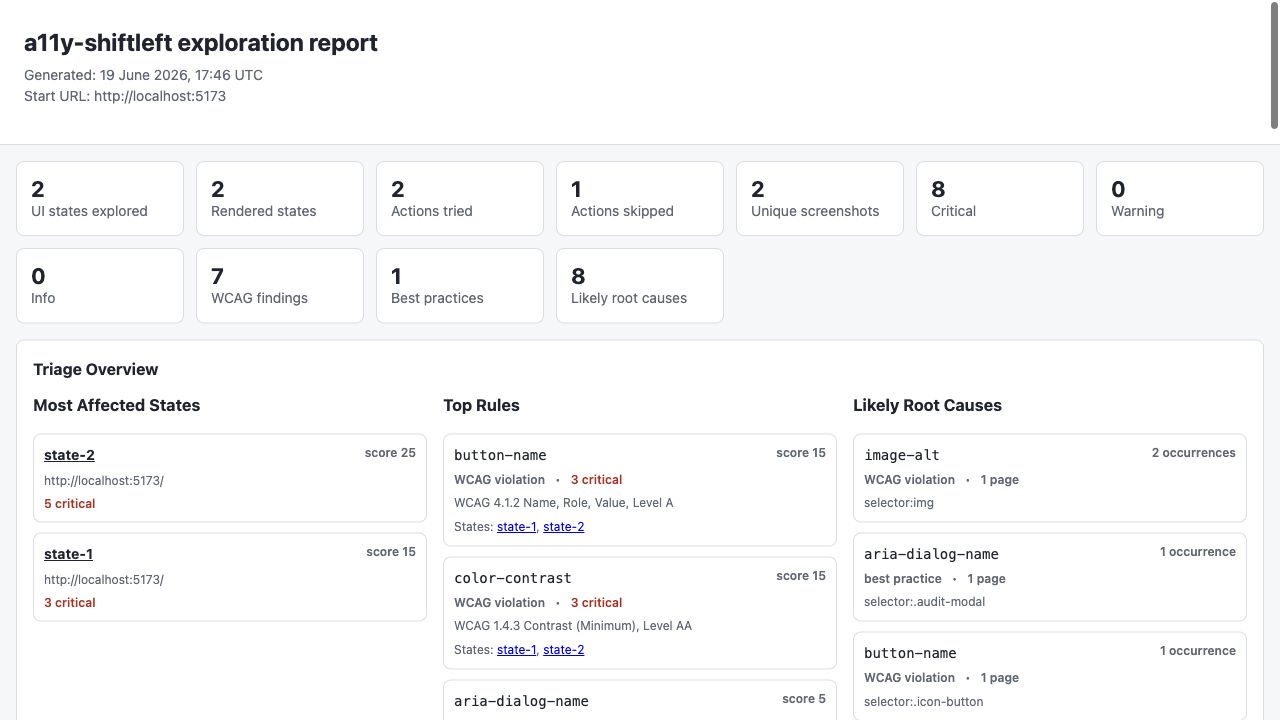
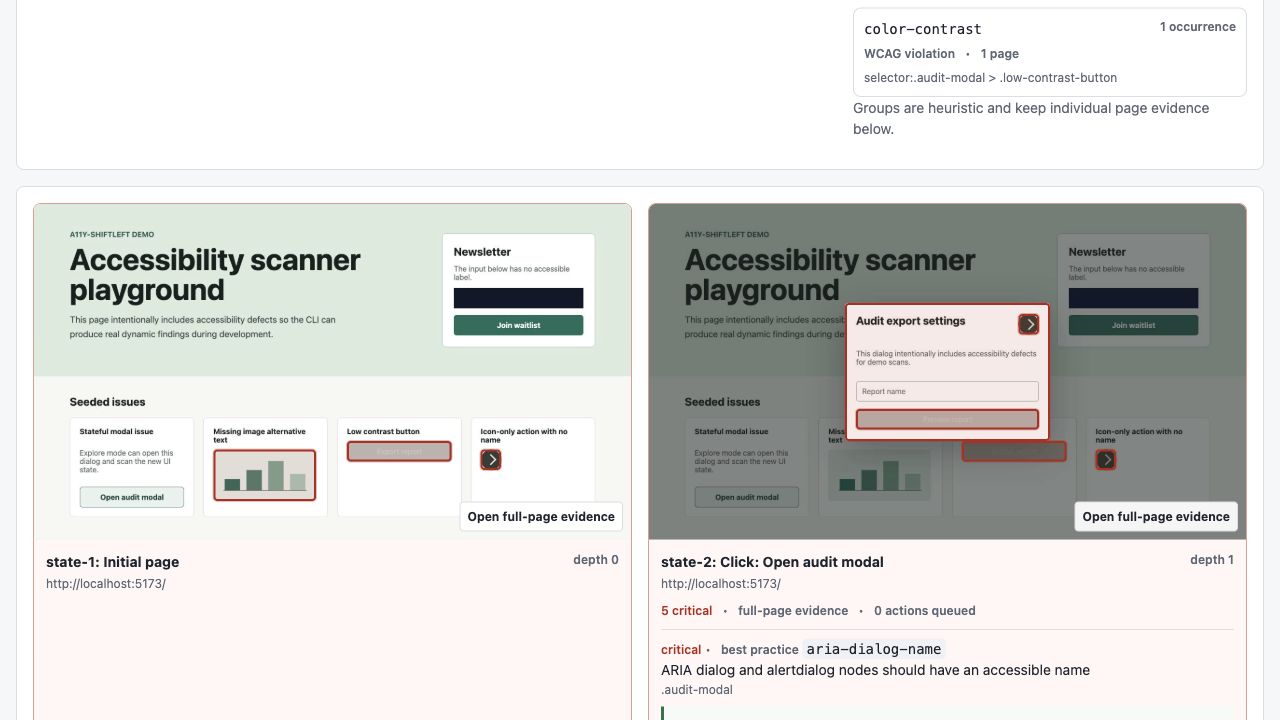
The audit command creates one local HTML report with summary metrics,
WCAG-aware triage, likely root causes, screenshots, keyboard evidence, manual
review steps, and fix recommendations. It safely discovers UI states, including
opened dialogs with annotated accessibility findings.
2-Minute Quick Start
Use this when your app already runs locally.
- Install the CLI:
npm install --save-dev a11y-shiftleft-cli
npx playwright install chromium
The examples below use the published package name
npx a11y-shiftleft-cli. After local installation, the shorter
npx a11y-shiftleft alias also works inside the project.
- Start your app in another terminal:
npm run devCommon dev server URLs by framework or tool:
| Framework / Tool | Default URL |
|---|---|
| Vite (React, Vue, Svelte) | http://localhost:5173 |
| Next.js | http://localhost:3000 |
| Create React App | http://localhost:3000 |
| Angular CLI | http://localhost:4200 |
| Astro | http://localhost:4321 |
| Webpack Dev Server | http://localhost:8080 |
When in doubt, use the URL your terminal prints after npm run dev.
- Run your first audit. Replace the URL with the URL printed by your dev server:
npx a11y-shiftleft-cli audit --url http://localhost:5173 --out reportsThe command combines available static analysis, browser exploration, axe checks, a bounded keyboard traversal, screenshots, and a manual-review checklist. Safe mode blocks recognized payment, account, cookie-consent, permission, advertising, and other high-risk controls.
The audit writes screenshots while browser exploration is running. The combined
reports/a11y-report.html file is created after exploration, keyboard checks,
and report processing finish. Wait for the terminal to print Open: reports/a11y-report.html before opening the final report.
- Open the visual report:
# macOS
open reports/a11y-report.html

# Linux
xdg-open reports/a11y-report.html

# Windows PowerShell
start reports/a11y-report.html
The default audit stays compact:
reports/a11y-report.html
reports/a11y-report.json
reports/a11y-comment.md
reports/screenshots/
Add --excel for four structured CSV tables, --pdf for a portable visual
report, or --raw for the exploration graph. These files are optional so a
normal local audit remains easy to navigate.
Optional Project Setup
Create a config file and add generated reports to .gitignore:
npx a11y-shiftleft-cli init --framework auto --gitignoreThen use a URL shortcut in your terminal. The examples below use macOS/Linux shell syntax:
export APP_URL=http://localhost:5173
npx a11y-shiftleft-cli doctor --url $APP_URL
npx a11y-shiftleft-cli audit --url $APP_URL --out reports
In Windows PowerShell, set $env:APP_URL = "http://localhost:5173" and use
$env:APP_URL in place of $APP_URL. You can also avoid environment variables
and pass the URL directly on every operating system.
APP_URL is only a shortcut. You can always pass the URL directly:
npx a11y-shiftleft-cli audit --url http://localhost:4200 --out reportsCopy-Paste Recipes
Not sure which command to choose? Start with audit. It produces the complete
visual report and includes the other checks most teams need for local review.
Full Visual Audit
Use audit for the normal end-to-end workflow. Its primary output is the visual
HTML report.
| Goal | Command | Main output |
|---|---|---|
| Run the recommended audit | npx a11y-shiftleft-cli audit --url $APP_URL --out reports |
a11y-report.html |
| Show only WCAG-mapped findings | npx a11y-shiftleft-cli audit --url $APP_URL --wcag-only --out reports |
Report without best-practice or unmapped review signals |
| Add Excel and PDF exports | npx a11y-shiftleft-cli audit --url $APP_URL --out reports --excel --pdf |
HTML, CSV, and PDF |
| Force complete page screenshots | npx a11y-shiftleft-cli audit --url $APP_URL --screenshot-full-page --out reports |
Full-page visual evidence |
| Audit a slower application | npx a11y-shiftleft-cli audit --url $APP_URL --wait-ms 1000 --out reports |
Visual report after an extra settle wait |
Fast Checks For Terminal And CI
Use check when speed and machine-readable output matter more than screenshots.
It writes JSON, Markdown, and optional CSV reports; it does not create a visual
HTML report.
| Goal | Command | Main output |
|---|---|---|
| Run a fast browser scan | npx a11y-shiftleft-cli check --dynamic --url $APP_URL --out reports |
JSON and Markdown |
| Run static source checks only | npx a11y-shiftleft-cli check --static --out reports |
JSON and Markdown |
| Scan several known pages | npx a11y-shiftleft-cli check --dynamic --url $APP_URL $APP_URL/settings $APP_URL/checkout --out reports |
Combined non-visual report |
| Discover same-origin pages | npx a11y-shiftleft-cli check --dynamic --url $APP_URL --crawl --crawl-depth 1 --crawl-limit 10 --out reports |
Bounded crawl results |
| Compare only new findings | npx a11y-shiftleft-cli check --url $APP_URL --baseline --out reports |
Baseline comparison |
Visual UI Exploration
Use explore when you specifically need screenshots and a graph of safely
discovered pages, modals, menus, themes, and other UI states without the combined
keyboard and manual-review sections from audit.
| Goal | Command | Main output |
|---|---|---|
| Explore visual UI states | npx a11y-shiftleft-cli explore --url $APP_URL --depth 2 --out reports |
exploration.html |
| Force complete page screenshots | npx a11y-shiftleft-cli explore --url $APP_URL --depth 2 --screenshot-full-page --out reports |
Full-page exploration evidence |
| Wait for a loaded-state selector | npx a11y-shiftleft-cli explore --url $APP_URL --wait-for-selector "[data-page-ready]" --out reports |
Visual report after the page is ready |
| Skip screenshots for private data | npx a11y-shiftleft-cli explore --url $APP_URL --no-screenshots --out reports |
Exploration data without images |
Development And CI Tools
| Goal | Command | Use it for |
|---|---|---|
| Verify local setup | npx a11y-shiftleft-cli doctor --url $APP_URL |
Framework, adapter, browser, and URL diagnostics |
| Audit only keyboard focus | npx a11y-shiftleft-cli keyboard --url $APP_URL --out reports/keyboard |
Focus order and keyboard evidence |
| Refresh reports while coding | npx a11y-shiftleft-cli watch --url $APP_URL --out reports/watch |
Local development feedback |
| Generate GitHub Actions workflows | npx a11y-shiftleft-cli ci --url $APP_URL --start-command "npm run dev" |
Pull-request and scheduled CI |
| View historical trends | npx a11y-shiftleft-cli dashboard --reports reports |
Local metrics dashboard |
What The Reports Mean
After an audit, start with reports/a11y-report.html. It combines visual states,
annotated screenshots, severity and WCAG metadata, fix recommendations, keyboard
evidence, and the manual checks that automation cannot complete. Use
a11y-comment.md for pull requests and a11y-report.json for integrations.
Each finding is labeled as a WCAG violation, best practice, or
unmapped review. Reports also group repeated occurrences into likely root
causes when the same rule and component state appear across routes. This grouping is
heuristic: per-page evidence remains available for review.
Under each screenshot, the visual report groups repeated findings by rule and
shows one deterministic How to fix guide for that state-level group. Known
rules provide specific steps, official guidance links, and framework examples
when available. Unknown rules still receive safe review steps instead of an
empty recommendation; axe findings also preserve their rule-specific help link.
| File | Use it for | Commit it? |
|---|---|---|
reports/a11y-report.html |
Primary visual review | Usually no |
reports/a11y-comment.md |
Human review and PR comments | Usually no |
reports/a11y-report.json |
Automation, debugging, integrations | Usually no |
reports/screenshots/ |
Screenshots from visual exploration | No |
reports/a11y-summary.csv |
Optional Excel summary from audit --excel |
Usually no |
reports/a11y-pages.csv |
Optional page table from audit --excel |
Usually no |
reports/a11y-rules.csv |
Optional rule table from audit --excel |
Usually no |
reports/a11y-findings.csv |
Optional finding table from audit --excel |
Usually no |
reports/a11y-report.pdf |
Optional portable report from audit --pdf |
Usually no |
reports/exploration-graph.json |
Optional debugging data from audit --raw |
Usually no |
.a11y-shiftleft.json |
Shared project config | Usually yes |
.a11y-baseline.json |
Accepted known findings | Yes, when using baseline mode |
a11y-ignore.json |
Temporary reviewed exceptions | Yes, when intentionally used |
Each finding can include:
{
  "ruleId": "color-contrast",
  "severity": "critical",
  "confidence": "high",
  "confidenceScore": 95,
  "category": "contrast",
  "findingType": "wcag",
  "contrast": {
    "actualRatio": 2.32,
    "requiredRatio": 4.5,
    "foreground": "#aaaaaa",
    "background": "#ffffff",
    "suggestions": [
      { "target": "foreground", "purpose": "minimum", "color": "#767676", "contrastRatio": 4.54 },
      { "target": "foreground", "purpose": "recommended", "color": "#6F6F6F", "contrastRatio": 5.02 },
      { "target": "foreground", "purpose": "enhanced", "color": "#595959", "contrastRatio": 7 }
    ]
  },
  "wcag": ["1.4.3"],
  "wcagCriteria": [
    {
      "id": "1.4.3",
      "title": "Contrast (Minimum)",
      "level": "AA",
      "principle": "perceivable",
      "url": "https://www.w3.org/WAI/WCAG22/Understanding/contrast-minimum.html"
    }
  ]
}
Severity answers: "How risky is this finding?"
Confidence answers: "How strong is the tool evidence?"
For axe color-contrast findings, JSON, Markdown, and visual reports include
the measured and required ratios, text and background colors, font metadata,
and deterministic suggestions that meet the reported threshold. Treat suggested
colors as starting points and verify shared design tokens and interactive states.
When a dynamic run checks multiple pages, the CLI also compares document
titles. It reports common starter placeholders such as Vite + React and titles
reused across distinct URLs, while repeated dialogs, themes, and other states of
the same URL are not treated as duplicate pages.
Static Checks For React, Vue, And Angular
Dynamic browser scans work without a framework adapter. Static checks are optional and add framework-specific lint findings.
Next.js projects can use the React adapter for JSX and TSX. Svelte, Astro, Rails, and Django projects currently use dynamic browser checks only; listing them as supported targets does not imply that dedicated static adapters exist.
Install only the adapter package you need:
| Project | Install |
|---|---|
| React | npm install --save-dev @a11y-shiftleft/react |
| Vue | npm install --save-dev @a11y-shiftleft/vue |
| Angular | npm install --save-dev @a11y-shiftleft/angular |
Ask the CLI for a recommendation:
npx a11y-shiftleft-cli adapter add react
npx a11y-shiftleft-cli adapter add vue
npx a11y-shiftleft-cli adapter add angular
Run static checks only:
npx a11y-shiftleft-cli check --static --framework react --out reportsRun static and dynamic checks together:
npx a11y-shiftleft-cli check --url $APP_URL --out reportsFull Audit
Use audit for the normal local workflow:
npx a11y-shiftleft-cli audit --url $APP_URL --out reportsThe HTML report includes safely discovered pages and UI states, axe and static
findings, annotated screenshots, keyboard focus evidence, and a manual-review
checklist. A compact Quick Review at the start combines the three highest-impact
findings, the first five Tab stops, and the next three human-review tasks. The
keyboard section includes a numbered visual Tab-order path and
flags steps where a visible focus indicator was not detected or a control may
be obscured; the complete selector data remains available in an accessible
table. Its coverage matrix separates completed automation from keyboard,
screen-reader, and human-review work. Automatically collected areas appear as
green rows with locked checked boxes. Areas that still need a person appear as
yellow rows with interactive checkboxes; selections are stored only in the
current browser for that generated report. Each explored state includes a compact
browser accessibility-tree summary with landmarks, headings, interactive
controls, and unnamed interactive-node counts. Add --activation to exercise
bounded Enter, Space, Escape, and arrow-key behavior in isolated browser
contexts.
For native modal dialogs and elements with aria-modal="true", the isolated
check also performs up to 20 Tab and Shift+Tab steps in each direction. It
reports focus that escapes to background content, then checks Escape dismissal
and focus restoration. Non-modal dialogs remain manual-review targets.
The manual-review checklist is context-aware. When the audit observes forms, dialogs, live regions, suspicious image alternatives, media, landmarks, or reflow states, it places up to six concrete targets under the relevant review task with the captured state, selector, and evidence. General checks remain available when no safe target was discovered automatically.
Every explored state also receives a 400% reflow proxy at 320 CSS pixels. The report records document-level horizontal overflow and bounded clipped-text candidates as heuristic WCAG 1.4.10 evidence. Because intentional truncation can be valid, flagged text still requires human confirmation at browser zoom.
When safe exploration opens a modal, audit checks its accessible name and initial focus. In an isolated browser page it also presses Escape and records whether the dialog closes and focus returns to its trigger. Escape support is reported as best-practice evidence; complete focus containment, every close path, and screen-reader behavior still require manual testing.
For each safe click that produces a new explored state, audit observes bounded
mutations in aria-live, alert, status, log, timer, and marquee
regions. It records the region, politeness, and text without treating a missing
announcement as an automatic failure. A supported screen reader must still
confirm timing, interruption, duplication, and usefulness.
For rendered forms, audit records explicit aria-invalid="true" fields,
aria-errormessage and aria-describedby associations, exposed error text,
error summaries, and current focus. It reports an invalid field when its
referenced message is missing, hidden, or empty. The audit never submits forms
or enters personal data; message quality and complete correction workflows
still require human and screen-reader review.
For rendered images, audit also reviews non-empty alternative text for
deterministic quality patterns: filenames, one-word generic labels, exact
duplication of nearby text, reuse across different image sources, and unusually
long alternatives. These are medium-confidence review signals with fix
guidance, not automatic judgments about image meaning. Missing alternatives
remain covered by axe and framework linting; decorative alt="" images are not
flagged by the quality heuristic.
Media evidence records rendered audio and video players, caption tracks,
nearby transcript candidates, autoplay/muted/controls state, active browser
animations, and detectable prefers-reduced-motion CSS. Equivalent axe media
findings are not duplicated. The report cannot determine whether media contains
speech, whether captions or transcripts are accurate, whether audio description
is sufficient, or whether animation flashes exceed a threshold; those remain
explicit manual-review tasks.
Embedded-content evidence lists iframe origin and document availability without
storing URL query strings or fragments. Modern @axe-core/playwright scans
accessible frame documents recursively; unavailable frames are reported as
coverage gaps with a recommendation to audit their source URL separately.
Canvas elements are checked for an accessible name, fallback text/content, or
an explicit decorative treatment. Because the CLI cannot interpret canvas
pixels, missing alternatives remain medium-confidence review signals.
Use --no-keyboard or --no-manual-review only when you deliberately need a
smaller run. Use --no-screenshots for sensitive applications. Optional export
files are explicit:
npx a11y-shiftleft-cli audit \
  --url $APP_URL \
  --out reports \
  --excel \
  --pdf \
  --raw
For a slow page, add a short bounded wait such as --wait-ms 1000, or prefer
--wait-for-selector "[data-page-ready]" when the app exposes a reliable loaded
state. Audit auto-scrolls before scanning by default; the step size and bound can
be tuned with --scroll-step and --scroll-max-steps.
Focused Visual Exploration
Screenshot privacy: explore captures screenshots of every page it visits.
If the app you are scanning contains personal data, login screens, payment details,
or production customer records, use --no-screenshots to skip them entirely.
See Visual reports for privacy and safe-mode details.
Use the lower-level explore command when you need only browser state discovery
and screenshots without the combined keyboard and manual-review sections:
npx a11y-shiftleft-cli explore --url $APP_URL --depth 2 --out reports--depth limits the length of an interaction path; it is not a requested page
count. Page discovery is also bounded by --limit and
--actions-per-state. Unique same-origin destinations are prioritized and
deduplicated by URL. Use the Pages visited metric in the report to measure
route coverage; Unique screenshots can be lower because identical images are
stored only once.
Dynamic scans and visual exploration auto-scroll pages before running axe. This
helps trigger lazy-loaded sections below the first viewport. The scan still
stays bounded for CI with a default maximum of 25 scroll steps per page. Use
--no-scroll only when a project needs to avoid scroll-triggered behavior.
The same commands automatically compare the rendered light and dark system color schemes when the page actually changes between them. Findings and visual states are labeled by color scheme in the reports. Pages that render identically are scanned once, so no theme option or second command is needed.
Screenshots are compact by default. Short affected pages can be captured in full, while long pages are automatically split into focused crops around nearby errors. This keeps below-the-fold evidence without storing thousands of unrelated pixels. Force complete pages only when an audit specifically needs that context:
npx a11y-shiftleft-cli explore \
  --url $APP_URL \
  --depth 2 \
  --screenshot-full-page \
  --out reports
Pixel-identical screenshots are stored only once. Repeated UI states remain in the exploration graph, but the HTML report replaces duplicate thumbnails with a link to the shared visual evidence.
For apps that render data after the first page load, add a short settle wait:
npx a11y-shiftleft-cli explore --url $APP_URL --depth 2 --wait-ms 1000 --out reportsIf your app exposes a stable loaded-state selector, wait for that instead of guessing a long timeout:
npx a11y-shiftleft-cli explore \
  --url $APP_URL \
  --wait-for-selector "[data-page-ready]" \
  --wait-ms 1000 \
  --out reports
It safely follows same-origin links and low-risk UI expansion controls such as
menu buttons, tabs, disclosure widgets, and modal triggers. Cookie consent
controls are never clicked automatically, including short buttons such as
Accept or OK when they appear inside a recognized consent banner.
Recognizable theme switches are checked early so explicit app themes are less
likely to be skipped by the bounded action limit.
It creates:
reports/exploration.html
reports/exploration.pdf       # only when --pdf is used
reports/exploration-graph.json
reports/screenshots/state-*.jpg
reports/screenshots/state-*-evidence-*.jpg   # focused crops on long pages
Screenshots are compressed, and sensitive form fields are masked by default.
Use --no-screenshots for apps with personal data, login screens, payment
details, or production records:
npx a11y-shiftleft-cli explore --url $APP_URL --depth 2 --no-screenshots --out reportsAdd --pdf when you need a portable copy of the visual report for a PR,
ticket, or internal review:
npx a11y-shiftleft-cli explore --url $APP_URL --depth 2 --pdf --out reportsGenerated PDFs include tagged structure, document language and title metadata, heading bookmarks, image alternative text from the HTML report, and semantic table headers where tables are present. Generation fails if the required PDF structure is missing. This improves screen-reader and keyboard navigation, but does not claim independent PDF/UA conformance certification.
See Visual reports for privacy and safe-mode details.
Watch Mode
Use watch during local development:
npx a11y-shiftleft-cli watch --url $APP_URL --out reports/watchIt watches common source folders such as src, app, pages, and
components, reruns checks after file changes, and prints what changed between
runs:
fixed 2, new 1, remaining 4Use custom paths when your UI code lives somewhere else:
npx a11y-shiftleft-cli watch \
  --url $APP_URL \
  --watch-path src shared/ui packages/app \
  --out reports/watch
See Watch mode for more examples and current limits.
Baseline Mode
Use baseline mode when adopting the CLI in a project that already has known findings. The first run records the current findings:
npx a11y-shiftleft-cli check --dynamic --url $APP_URL --baseline --out reportsCommit .a11y-baseline.json. Later CI runs with --baseline fail only on new
findings at the configured severity:
npx a11y-shiftleft-cli check \
  --dynamic \
  --url $APP_URL \
  --baseline \
  --fail-on warning \
  --out reports
Retest A Previous Report
Use retest mode after remediation to compare a new scan with an earlier report.
Pass either its a11y-report.json file or the directory containing it:
npx a11y-shiftleft-cli check \
  --dynamic \
  --url $APP_URL \
  --retest reports/before \
  --fail-on warning \
  --out reports/after
The new JSON, CSV, Markdown, and console summaries show how many findings were
fixed, remain, or are new. With --retest, the severity gate applies only to
new findings. Keep the previous and current runs in different directories.
Remediation Statuses
Keep team-owned remediation decisions in a11y-remediation.json. Entries are
matched by the stable fingerprint from a11y-report.json:
Create the initial file directly from a completed scan:
npx a11y-shiftleft-cli remediation init \
  --report reports/a11y-report.json \
  --out a11y-remediation.json
Then update an item without editing JSON manually:
npx a11y-shiftleft-cli remediation set \
  --fingerprint "button-name::url=http://localhost:5173::selector=.menu-button::critical" \
  --status in-progress \
  --owner @frontend-team \
  --reason "Fix is assigned to the current sprint."
{
"version": 1,
"items": [
{
"fingerprint": "button-name::url=http://localhost:5173::selector=.menu-button::critical",
"status": "in-progress",
"owner": "@frontend-team",
"reason": "Fix is assigned to the current sprint.",
"updatedAt": "2026-06-20",
"reviewBy": "2026-07-01"
}
]
}Supported statuses are open, in-progress, fixed,
accepted-temporarily, and manual-review. A temporary acceptance requires an
owner, reason, and review date. Findings remain visible in reports regardless
of status; use a11y-ignore.json only when an approved issue must be filtered.
For accepted-temporarily, pass --owner, --reason, and
--review-by YYYY-MM-DD. remediation init refuses to overwrite an existing
file unless --force is explicitly provided.
Use another file when needed:
npx a11y-shiftleft-cli check \
  --url $APP_URL \
  --remediation-file audit/a11y-remediation.json \
  --out reports
Temporary Ignores
Use a11y-ignore.json only for reviewed temporary exceptions:
{
  "version": 1,
  "ignores": [
    {
      "ruleId": "color-contrast",
      "selector": ".legacy-muted-text",
      "reason": "Legacy theme is scheduled for replacement.",
      "owner": "@frontend-team",
      "expires": "2026-09-30"
    }
  ]
}
Ignores require a reason, owner, and expiration date so they do not become permanent hidden risk.
GitHub Actions
Generate a pull request workflow:
npx a11y-shiftleft-cli ci \
  --url $APP_URL \
  --start-command "npm run dev" \
  --fail-on critical \
  --standard wcag22-aa
--start-command must be the command that starts your project at APP_URL.
For example, a Vite project on a non-default port can use
"npm run dev -- --host localhost --port 5173".
This creates:
.github/workflows/a11y.ymlFor a fast PR workflow plus a broader scheduled scan:
npx a11y-shiftleft-cli ci \
  --profile split \
  --url $APP_URL \
  --start-command "npm run dev" \
  --fail-on critical \
  --full-fail-on none \
  --crawl-limit 10 \
  --full-crawl-depth 3 \
  --full-crawl-limit 100 \
  --standard wcag22-aa
This creates:
.github/workflows/a11y-pr.yml
.github/workflows/a11y-full.yml
Dashboard
After several saved runs, open a local dashboard:
npx a11y-shiftleft-cli dashboard --reports reportsOr write a static dashboard file:
npx a11y-shiftleft-cli dashboard --reports reports --no-serveAdd --pdf when the dashboard should be attached to a ticket, review, or
internal report:
npx a11y-shiftleft-cli dashboard --reports reports --pdfThe dashboard summarizes trends, top rules, affected pages, and recent runs.
Ticket Drafts
Create dry-run Jira, Linear, or generic ticket drafts from an existing
a11y-report.json:
npx a11y-shiftleft-cli ticket export \
  --report reports/a11y-report.json \
  --tracker linear \
  --out reports/a11y-tickets.md
The export groups findings by severity, rule, page, and target. It does not connect to Jira or Linear yet, so teams can review the draft before creating real tickets.
Local Evidence Package
Collect the machine-readable reports, manual-review records, and keyboard or exploration metadata into a separate local directory:
npx a11y-shiftleft-cli evidence pack \
  --reports reports \
  --out a11y-evidence
The command copies only known report artifacts and writes
evidence-manifest.json with file sizes, SHA-256 checksums, and privacy
warnings. It never uploads the package and requires an empty output directory.
Screenshots, visual HTML, and PDF reports are excluded by default. Include them only after reviewing the source application for personal or sensitive data:
npx a11y-shiftleft-cli evidence pack \
  --reports reports \
  --out a11y-evidence-with-visuals \
  --include-visual
Focused Keyboard Audit
The recommended audit command already embeds keyboard evidence in
a11y-report.html and a11y-report.json. Use the standalone keyboard command
when you need to tune focus traversal, maintain a keyboard-specific baseline, or
run keyboard checks without screenshots and visual exploration.
Run a bounded keyboard-only traversal on a page:
npx a11y-shiftleft-cli keyboard --url $APP_URL --out reports/keyboardThe runner presses Tab and, after a complete forward cycle, Shift+Tab
without clicking controls or submitting forms. It
records selectors, roles, accessible names, visibility, focus indicators, and
obscuration for up to 40 steps. Each step also references a deduplicated
semantic page state containing the URL, title, H1, scroll position, viewport,
and counts of open dialogs and expanded controls. These state snapshots do not
capture screenshots, form values, or page HTML. In the unified audit report,
the forward path is also shown as a numbered visual sequence without relying on
color alone. It reports common positive tabindex, stuck or
incomplete focus cycles, specific controls skipped by a completed cycle,
focus loss to the document body, forward/reverse order mismatches, missing visible
focus, and focus hidden behind other content, with mappings to WCAG 2.1.1,
2.1.2, 2.4.3, 2.4.7, and 2.4.11.
Use --max-tabs 80 for a larger page. The generated keyboard-path.md and
keyboard-report.json are accompanied by the normal Markdown, JSON, and CSV
finding reports. This bounded traversal does not replace manual testing of
Enter, Space, Escape, arrow-key widgets, modal behavior, or complete user tasks.
Adopt existing keyboard findings without blocking CI, then fail only on new ones:
npx a11y-shiftleft-cli keyboard \
  --url $APP_URL \
  --update-baseline \
  --out reports/keyboard

npx a11y-shiftleft-cli keyboard \
  --url $APP_URL \
  --baseline \
  --fail-on warning \
  --out reports/keyboard
Keyboard mode uses .a11y-keyboard-baseline.json by default so it does not
replace the baseline used by check. It also applies a11y-ignore.json and
a11y-remediation.json; use --no-ignore or --no-remediation-tracking when
those policies should not apply.
Run bounded activation checks when you also want to exercise safe stateful controls:
npx a11y-shiftleft-cli keyboard \
  --url $APP_URL \
  --activation \
  --max-activations 6 \
  --out reports/keyboard
Each attempt runs in a fresh browser context. Links, form submission, file controls, advertisements, account/payment/cookie/permission actions, later navigation, and post-load XHR/fetch are blocked. The first release keeps this mode opt-in because no automatic label-based safety policy can prove that an unknown application action is harmless.
See Keyboard focus audit for report details and current limits.
Manual Review Checklist
Automated tools do not catch every accessibility issue. audit embeds a manual
review checklist directly in the primary HTML and JSON reports. It covers
keyboard flow, screen-reader smoke testing, form labels, content clarity, zoom
and reflow, alternative-text and logo quality, media and motion, skip links, and
representative-user tasks.
The screen-reader steps use representative US desktop combinations: NVDA with Chrome or Firefox, JAWS with Chrome or Edge, and VoiceOver with Safari. Teams can select combinations that match their supported platforms and risk profile; the CLI does not claim to automate screen-reader testing.
For the standalone Markdown and JSON checklist workflow, run:
npx a11y-shiftleft-cli check --url $APP_URL --semi-auto --out reportsThis adds:
reports/a11y-manual-checklist.md
reports/a11y-manual-checklist.json
Each item includes fields for review status, tester, date, test environment, notes, evidence links, and remediation owner. Use Markdown for human review and JSON when the evidence needs to be processed or aggregated later.
WCAG And Compliance Support
Filter mapped findings by WCAG level or version:
npx a11y-shiftleft-cli check --url $APP_URL --wcag-filter AA --out reports
npx a11y-shiftleft-cli check --url $APP_URL --wcag-version 2.0 --out reports
Use a report metadata preset:
npx a11y-shiftleft-cli check --url $APP_URL --standard wcag22-aa --out reports
npx a11y-shiftleft-cli check --url $APP_URL --standard section508 --out reports
npx a11y-shiftleft-cli check --url $APP_URL --standard ada-title-ii --out reports
Automated reports do not certify full WCAG, ADA, or Section 508 conformance. Use them with manual keyboard review, screen reader checks, content review, and your organization's compliance process.
Troubleshooting
If a scan fails because of Node, Playwright, Chromium, config, or a target URL, run:
npx a11y-shiftleft-cli doctor --url $APP_URLFor CI or scripts:
npx a11y-shiftleft-cli check --dynamic --url $APP_URL --json-summary --out reports
npx a11y-shiftleft-cli check --dynamic --url $APP_URL --quiet --out reports
npx a11y-shiftleft-cli check --dynamic --url $APP_URL --verbose --out reports
Local Demo
This repository includes a React/Vite demo with intentional accessibility defects.
nvm use
npm install
npm run demo -- --port 5173
In another terminal:
nvm use
node bin/cli.js audit --url http://localhost:5173 --out reports
More Documentation
- FAQ: Common questions about installing, running, and reading reports.
- Recipes: React, Vue, Angular, Next.js, multiple URL scans, GitHub Actions, ADA Title II, and Section 508 setup guides.
- Configuration: config files,
.gitignore, baseline files, ignores, cleanup, and retention. - Visual reports: screenshot privacy, safe mode, and
advanced
exploreoptions. - Report sharing: GitHub Actions artifacts, privacy review, and the planned sanitized export path.
- Keyboard focus audit: bounded Tab traversal, generated focus-path evidence, and current limitations.
- Watch mode: local development feedback after file changes.
- Ticket export: dry-run Jira, Linear, or generic
ticket drafts from
a11y-report.json. - Evidence methodology: confidence scoring, issue categories, false-positive review, and metrics definitions.
- WCAG 2.2 coverage: criterion-by-criterion automated, manual, and missing coverage.
- Empirical validation: baseline vs intervention study design and analysis commands.
- Adoption strategy: npm scripts, generated CI, future GitHub Action wrapper, docs-site plan, and outreach ideas.
- Roadmap: Lighthouse comparison, browser overlay, dashboard improvements, and future tracker integrations.
- Contributing: first PR path, local setup, testing, issue templates, and pull request checklist.
- GitHub About setup: recommended repository description, website, and topics.
Release Notes
Current release:
Previous releases: